User switching lets staff share a device (e.g. a front-counter terminal) without logging out and back in each time. Each staff member has a short numeric PIN which they enter to take over the session. This guide covers setting your own PIN, an admin resetting someone else's, and how the switch itself works.
Setting your own PIN
Open your own user profile (top-right user menu → My Profile). Scroll to the User Switch PIN card.
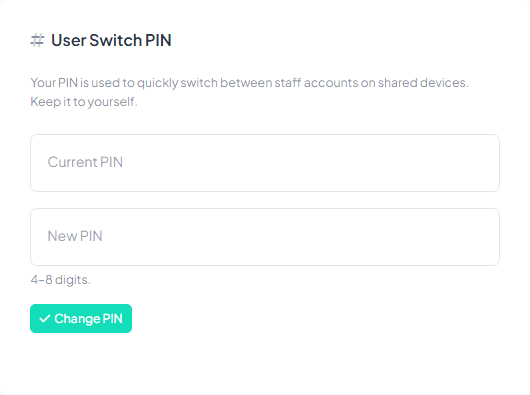
- If you already have a PIN set, enter it in the Current PIN field.
- Type a new 4–8 digit PIN in the New PIN field.
- Click Set PIN (or Change PIN).
A green confirmation means you're done. The PIN is stored hashed — not even an admin can read it back, they can only reset it.
Admin: setting or resetting another user's PIN
If a staff member forgets their PIN, an admin can reset it for them. You need the Manage Permissions privilege.
- Go to Users → find the user → click their name to edit.
- Scroll to the User Switch PIN card.
- Type a new PIN in the field (4–8 digits) and click Save PIN.
- Share the new PIN with the user and ask them to change it to something only they know.
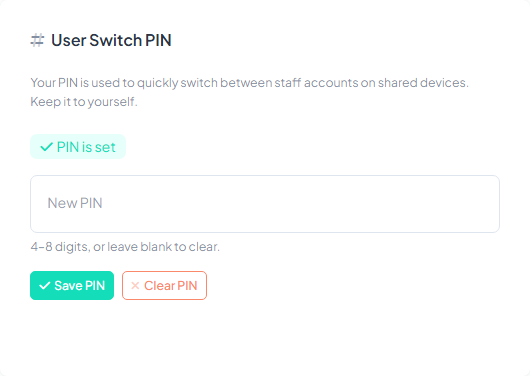
Clearing a PIN
Click Clear PIN to remove a user's PIN entirely. The user won't appear in the switch list until they set a new one (unless the branch setting below is enabled).
How user switching works
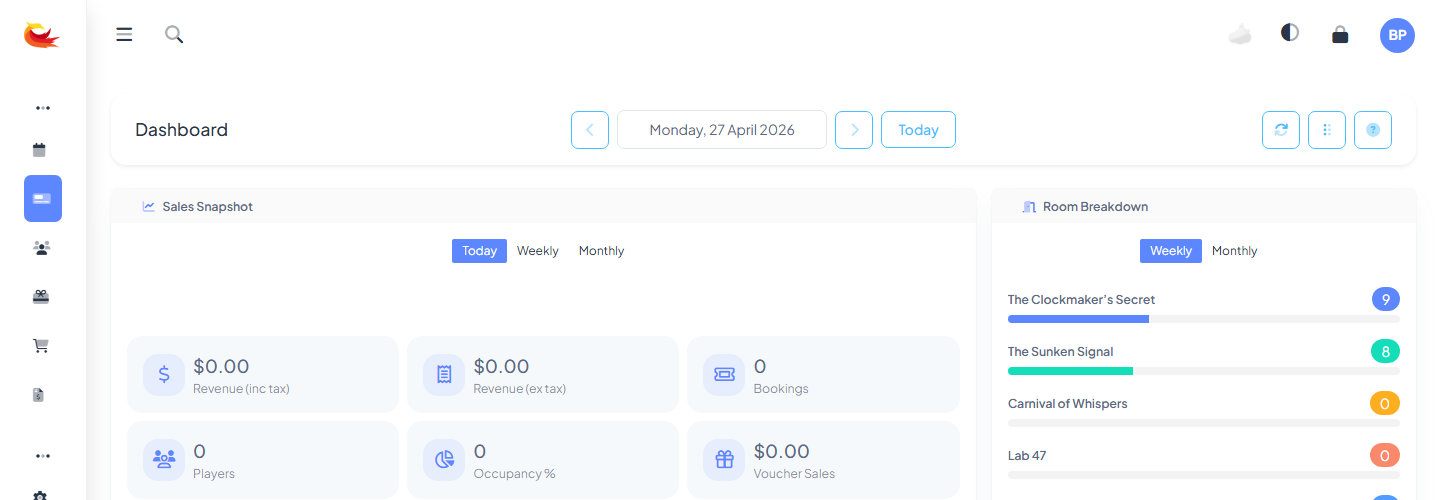
On the top bar, click the user avatar to open the switch panel. You'll see every active staff member at your tenant. Click a user, enter their PIN, and the session switches to them — no password re-entry required.
Failed attempts
Wrong PINs are logged to the authentication log. Repeated failures from the same device will trip the security log — check Reports → Auth Log if you see something unexpected.
Branch setting: allow switching without a PIN
By default, only users with a PIN appear in the switch list. If you want new staff to be switchable before they've set their PIN, a branch admin can enable Allow user switching without a PIN in the branch settings. This is convenient but reduces security — consider whether your front-of-house environment is controlled enough to justify it.
Good PIN hygiene
- Don't use obvious numbers (1234, 0000, your birth year).
- Don't share PINs — each staff member should have their own so actions are tracked to the right person.
- If you suspect yours is compromised, change it from your profile immediately.
Was this article helpful?
That’s Great!
Thank you for your feedback
Sorry! We couldn't be helpful
Thank you for your feedback
Feedback sent
We appreciate your effort and will try to fix the article