Staff users are the accounts your team uses to log in, take bookings, and access reports. This guide walks you through adding a new one and assigning the right access.
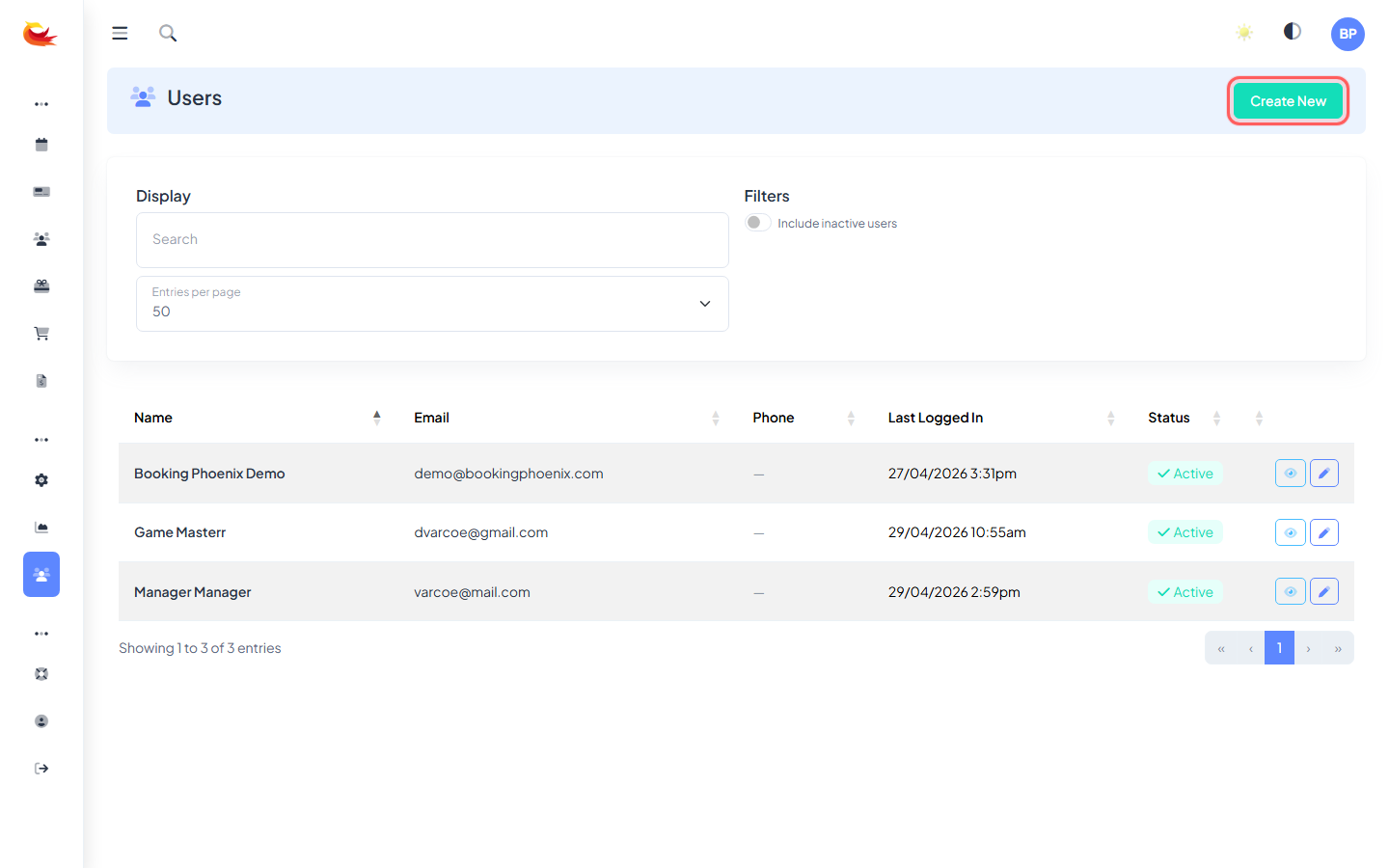
1. Open the Users page
From the main menu go to Users. You'll see a list of all staff accounts at your tenant. Click Create New (top right).
2. Fill in Personal Info
- First Name / Last Name — required. This is what appears on booking notes, the user switch screen, and in reports.
- Contact Phone — optional, useful for rostering.
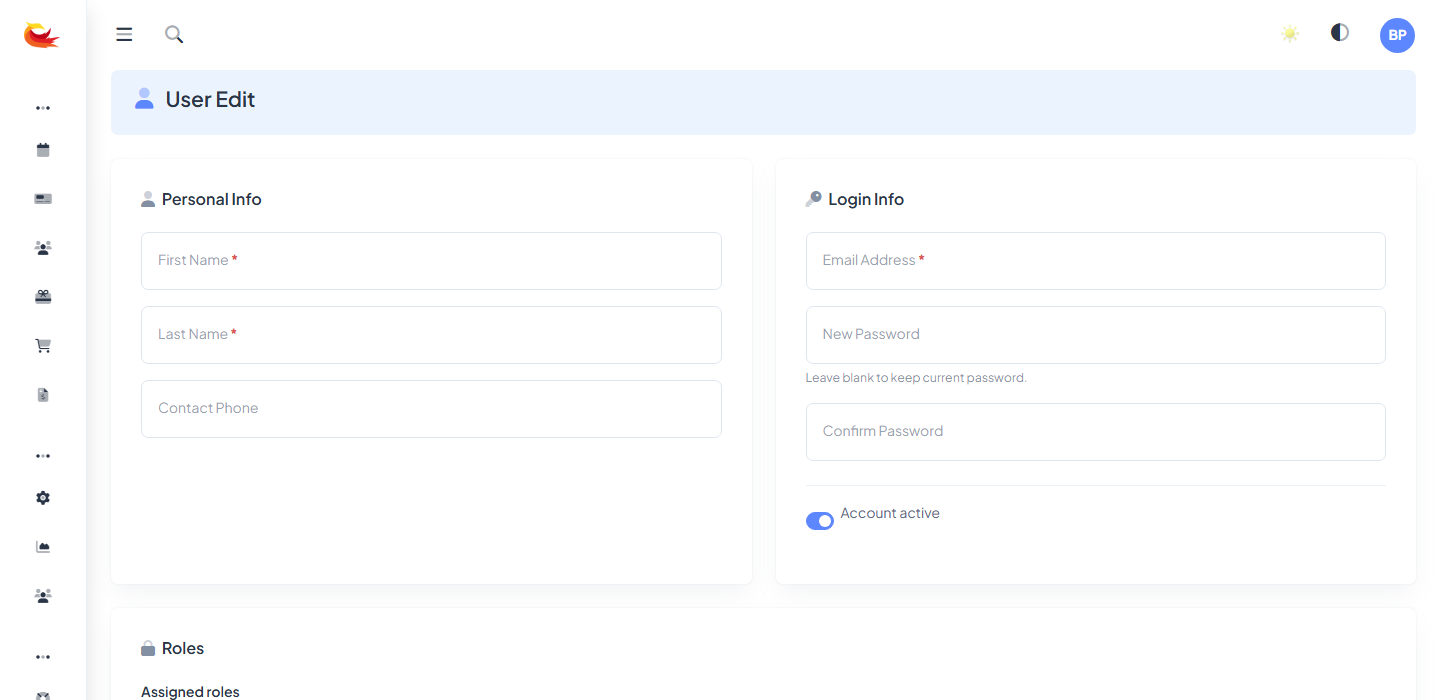
3. Fill in Login Info
- Email Address — required and must be unique. This is their login.
- New Password / Confirm Password — set an initial password. Ask the user to change it on first login.
- Account active — leave on for normal staff. Turn off to disable login without deleting history.
4. Assign roles
Roles control what the user can do (take bookings, refund payments, manage rooms, view reports, etc.). Click in the Assigned roles box and select one or more from the dropdown.

If you're unsure which roles to pick, start conservatively — you can always add more later. A typical front-desk role will include booking management but not financial settings or user administration.
5. Upload a photo (optional)
Once the user is saved, an avatar upload card appears. A photo helps with identification on the user-switch screen on shared terminals.
6. Save
Click Save. The user can now log in at your normal login page using the email and password you set.
Next steps
- PIN setup. If your branch uses user switching on shared devices, ask the new user to set their PIN from their own profile. See our User PINs & User Switching guide.
- First login. Have them change the initial password to one only they know.
- Review permissions. After a week or so, check whether the assigned roles match what they actually need day-to-day.
Deactivating a user
When a staff member leaves, don't delete them — their booking and payment history would become hard to attribute. Instead, edit their profile and turn off Account active. They'll lose login access immediately but all history stays intact.
Was this article helpful?
That’s Great!
Thank you for your feedback
Sorry! We couldn't be helpful
Thank you for your feedback
Feedback sent
We appreciate your effort and will try to fix the article