Scheduled reports email you a fresh copy of a report on a recurring schedule — daily, weekly, or monthly — so the numbers you care about land in your inbox without anyone having to remember to pull them. This guide covers creating a schedule, picking the right report and period, and managing the list over time.
report.scheduled.manage). Recipients themselves don't need a permission — they receive the PDF in their inbox regardless of their Booking Phoenix access. Assignable from Settings → Permissions — see Roles and Permissions.
1. Open scheduled reports
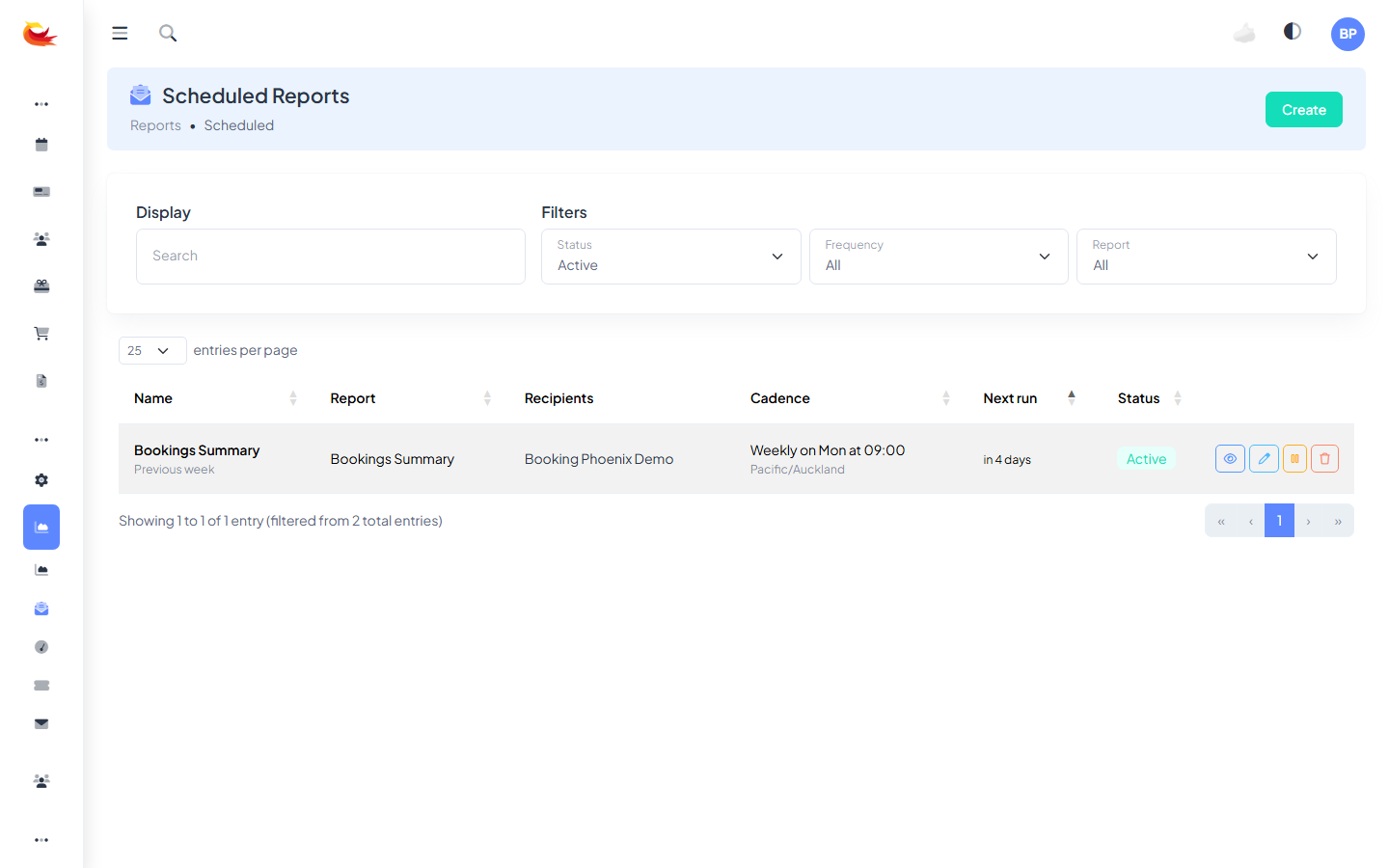
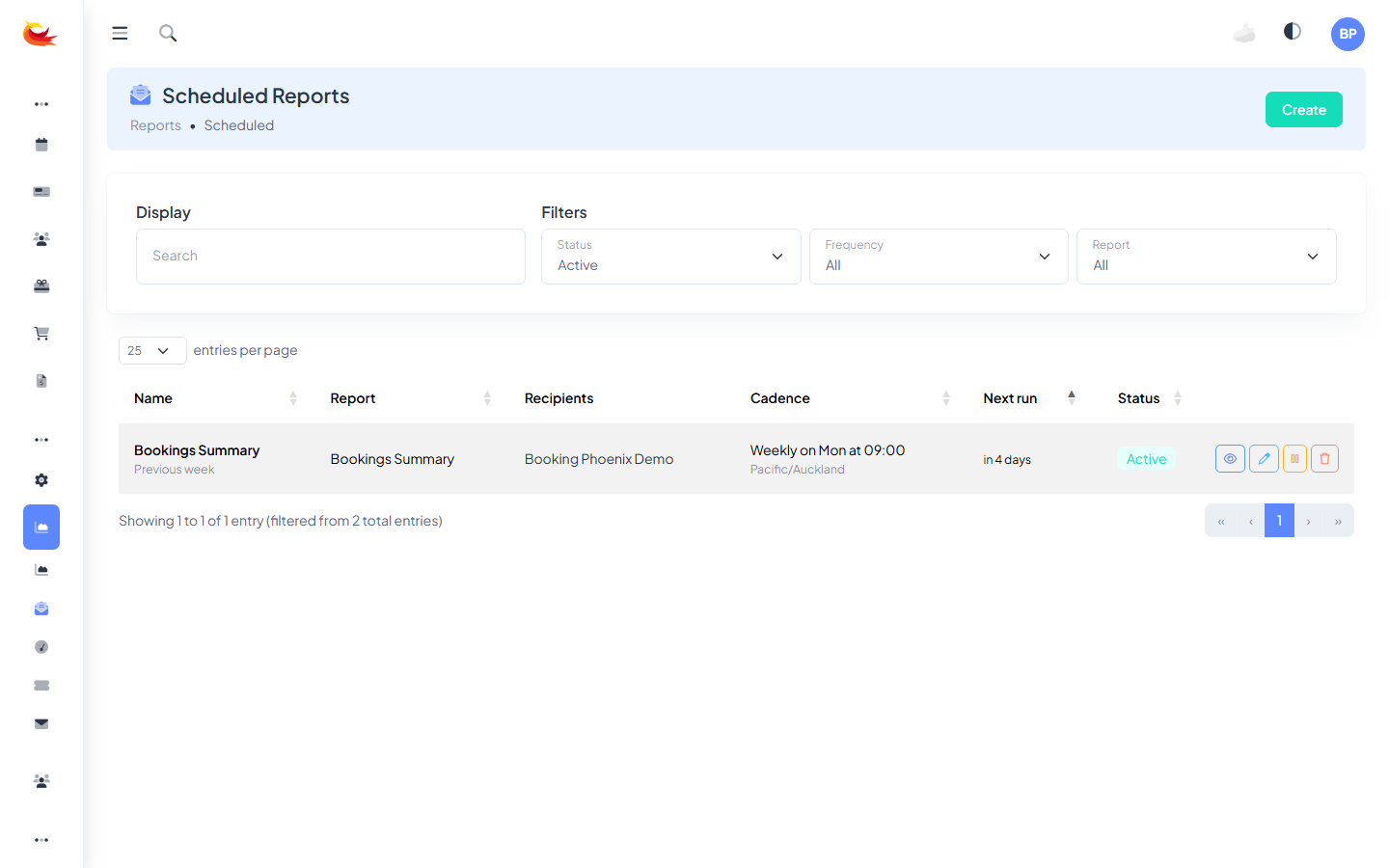
From the main menu go to Reports → Scheduled. You'll see a list of every scheduled report at your tenant with its name, report type, recipients, cadence, and next run time.
2. Create a schedule
Click Create (top right) to open the new-schedule modal. Fill in the fields top to bottom.
Name
An internal label that appears in the schedule list and in the email subject. Make it specific enough that the recipients know what they're looking at: "Weekly bookings summary" beats "Report".
Report
Pick which report runs. Currently three are available:
- Bookings Summary — counts, status breakdown (booked / cancelled / no-show), and per-room totals for the period. Useful as a daily or weekly digest of activity.
- Occupancy — room utilisation: booked slots vs capacity, with per-room and day-of-week breakdowns. Best as a weekly or monthly view to see which rooms and time slots are working.
- Revenue — gross, paid, and outstanding revenue with per-room and per-day breakdowns. The number most owners want to see every Monday morning.
Hover the dropdown to see each report's description before picking.
Frequency, time, timezone
How often the report runs and when:
- Daily — runs every day at the time you set.
- Weekly — pick a day of the week. Common pattern: Monday at 9am for the previous week's numbers.
- Monthly — pick a day of the month (1–28 to avoid month-end edge cases).
The time is in your branch's timezone — not UTC. Pick the timezone matching your reporting expectations (almost always your branch's local timezone). The modal shows a "Next run" preview that updates as you adjust the fields, so you can sanity-check before saving.
Period
The date range the report covers. Independent from the frequency — you might run a report daily but cover the previous week each time.
- Previous day — yesterday only. Pairs with daily frequency.
- Previous week (Mon–Sun) — the last calendar week. Pairs with weekly frequency.
- Previous month — the last calendar month. Pairs with monthly frequency.
- Last 7 days — rolling 7-day window ending at run time.
- Last 30 days — rolling 30-day window ending at run time.
Calendar periods (previous day / week / month) tend to align with how people think about a business cycle. Rolling periods are useful for "always show me the last 30 days regardless of the calendar."
Recipients
Who gets the email. Pick one or more active staff users from your tenant — the dropdown only lists users currently active. Each recipient gets the same PDF attachment.
You can include yourself, your manager, your accountant (if they have a Booking Phoenix account), or a shared mailbox user that forwards to multiple people.
Active
Toggle Active off to pause a schedule without deleting it. Paused schedules don't fire but stay on the list; flip back on whenever. Useful for quiet seasons or when temporarily pausing a recipient who's on leave.
3. Save
Click Save. The schedule appears in the list with its next-run timestamp. Reports are queued by a server-side job that runs every minute, so the email arrives within a few minutes of the scheduled time.
What recipients see
Each scheduled run sends an email with:
- A subject line including the schedule name and the period covered.
- A short summary in the email body (totals, top rooms).
- A PDF attachment with the full report — tables, charts, breakdowns.
The PDF is branded with your branch logo and uses your branch's currency / timezone for figures and dates.
Editing or pausing an existing schedule
On the scheduled-reports list, click the edit icon on any row. The same modal opens pre-filled. Change anything and save — the next run picks up the new settings.
To pause without losing the configuration, untick Active on the schedule. To resume, tick it back on.
To delete a schedule entirely, click the trash icon. Past runs and emails aren't affected — you just stop new ones.
Previewing before saving
The modal has a Preview button (eye icon) that runs the report immediately with the current settings and emails it to you alone. Useful for confirming the report looks right before going live with the schedule. The preview doesn't affect the saved schedule or its next run time.
If a run fails
Occasionally a run fails — recipient mailbox full, transient mail-server issue, an unexpected error in the data. Failures are recorded on the schedule with a count and the most recent error message:
- The next run still fires on schedule — one failure doesn't pause the series.
- If a schedule fails repeatedly, an alert is shown on the list. Click into it to see the error and either fix the cause or pause the schedule.
- Common failure causes: invalid recipient email, recipient deactivated, schedule created against a now-deleted report type.
Practical patterns
The Monday morning revenue email
Frequency Weekly, day Monday, time 9am, period Previous week (Mon–Sun), report Revenue, recipients owners + manager. Lands in inboxes before the week starts so leadership sees the numbers before any meetings.
Daily occupancy snapshot
Frequency Daily, time 7am, period Previous day, report Occupancy, recipients shift leads. Tells the team how full yesterday was and which time slots are running hot or cold.
Monthly accounting handoff
Frequency Monthly, day 1, time 8am, period Previous month, report Revenue, recipient your accountant's user account. Saves an email back-and-forth at month-end — the numbers arrive automatically.
Common pitfalls
- Wrong period. "Previous week" reports the past Mon–Sun — if you run weekly on Wednesday, you're seeing the week that ended 4 days ago. For most cases that's fine; for "what happened so far this week", use Last 7 days instead.
- Frequency / period mismatch. Running daily with the period set to "previous month" means every day of the month, recipients get the same report. Probably not what you want. Match the period to the frequency.
- Too many schedules. One revenue report a week is informative; six revenue reports across slightly different windows is noise. Add schedules conservatively.
- Recipient deactivated. If a staff member leaves and is deactivated, schedules they were on will fail their portion. Edit the schedule to remove them.
Adding more report types
The three reports above are the ones currently available for scheduling. As Booking Phoenix grows the library, additional report types will appear in the Report dropdown automatically — no changes needed in your existing schedules. If there's a specific report you'd like scheduled that's not in the list, raise a support ticket.
Was this article helpful?
That’s Great!
Thank you for your feedback
Sorry! We couldn't be helpful
Thank you for your feedback
Feedback sent
We appreciate your effort and will try to fix the article