The dashboard is the first page you see when you log in. It's a grid of widgets — KPIs, charts, activity feeds, upcoming bookings — and it's fully customisable per user. This guide shows how to arrange it for how you actually work.
Default layout
New users start with a sensible default: today's bookings, a week-at-a-glance chart, recent activity, and a small set of KPIs. You can rearrange, add, or remove any of it.
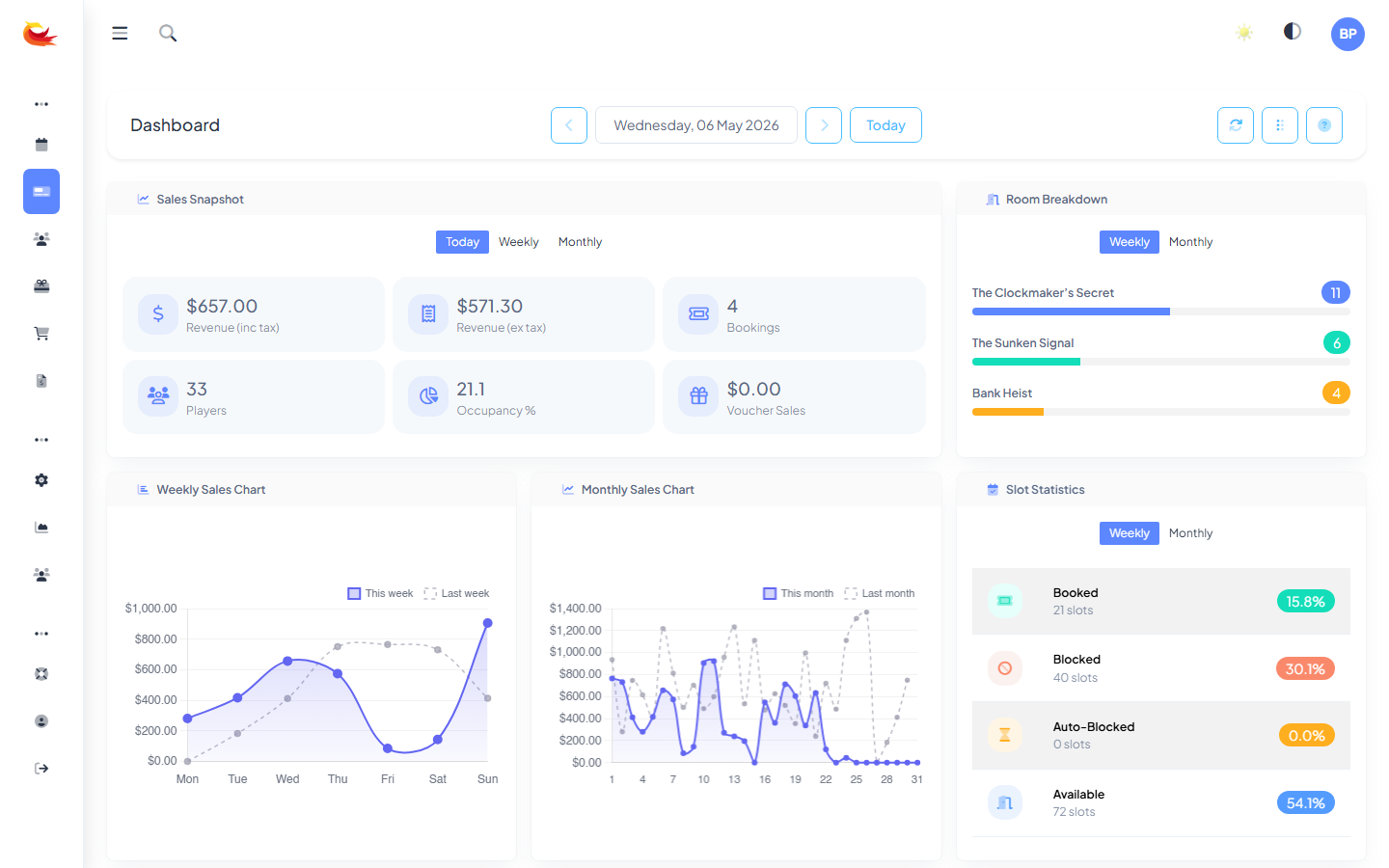
Adding a widget
- Click Add Widget (top right of the dashboard).
- Browse the widget gallery — it's grouped by category (KPIs, Charts, Activity, Lists).
- Click a widget to add it to the bottom of your dashboard.
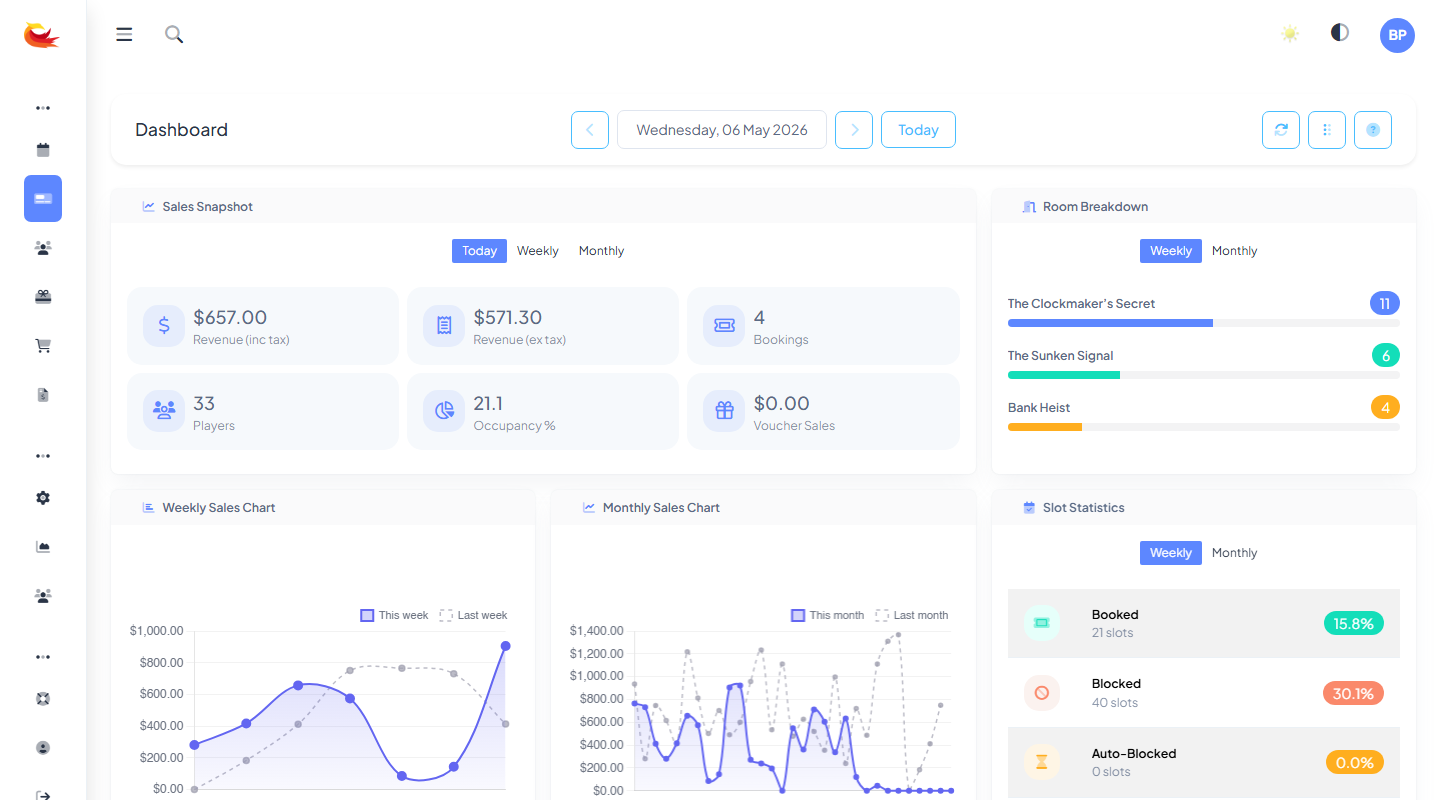
Available widgets
KPI tiles
- Bookings Today — how many are booked for today.
- Revenue Today — takings so far.
- Utilisation — today's booked-slots / total-slots.
- New Customers — customers added in the last N days.
Charts
- Weekly Chart — bookings by day for the current week.
- Slot Stats — which slots are filling up fastest.
- Slot Heatmap — heat-mapped availability across the coming week.
- Booking Source — widget vs POS vs phone breakdown.
- Room Breakdown — bookings per room.
Activity & lists
- Activity Feed — live stream of recent bookings, payments, cancellations.
- Latest Bookings — last N bookings in a compact list.
- Upcoming Today — today's bookings in time order.
- Top Slots — most popular slots over a period.
Other
- Weather — local weather forecast, useful for outdoor venues.
- Snapshot — a combined summary card.
Moving and resizing widgets
Widgets are drag-and-drop:
- Move — click and hold the widget header, then drag to the position you want.
- Resize — drag the bottom-right corner to make the widget wider or taller. Widgets snap to a 12-column grid.
- Remove — click the "×" on the widget header.
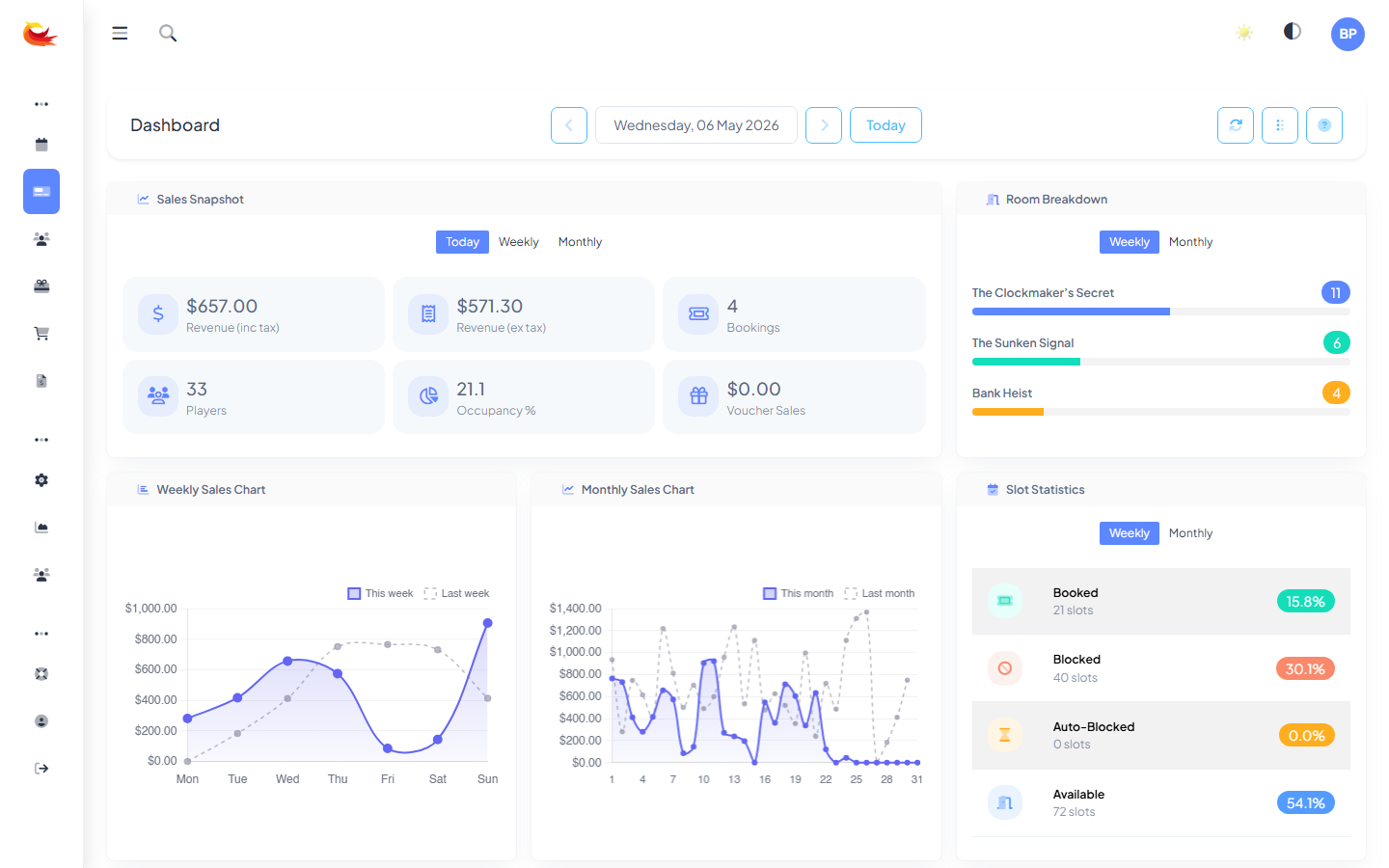
Changes save automatically — you don't need to click a "save layout" button. If you mess up the layout, click Reset to default in the dashboard menu.
Per-user layouts
Each user has their own dashboard layout. Changes you make don't affect anyone else, and you'll see the same layout whether you log in from the office terminal or your laptop at home.
If you want to standardise layouts across a team (e.g. so every front-desk terminal shows Bookings Today + Upcoming + Activity Feed), ask your admin to set up a default dashboard template — owners can configure one that new users start from.
Widget settings
Many widgets have configuration options — click the gear icon on the widget header. Common settings:
- Time range — today / this week / this month / rolling 30 days.
- Room filter — show stats for specific rooms only.
- Display mode — chart type, list length, card size.
Suggested layouts
For a front-desk terminal
- Upcoming Today (big, top-left)
- Bookings Today KPI (top-right)
- Activity Feed (bottom)
Focus: who's arriving next, what's happening right now.
For an owner / manager
- Revenue Today + Bookings Today + Utilisation KPIs across the top
- Weekly Chart (middle)
- New vs Returning / Source Breakdown (bottom)
Focus: business performance, trends, acquisition.
For a games-master / operator
- Slot Heatmap (top — see what's busy this week)
- Upcoming Today (middle)
- Top Slots (bottom)
Focus: operational load, what's coming up.
Performance
Each widget makes its own small data query. A dashboard with 20+ widgets can slow the initial page load — if you notice the dashboard feels sluggish, trim widgets you don't check often.
Was this article helpful?
That’s Great!
Thank you for your feedback
Sorry! We couldn't be helpful
Thank you for your feedback
Feedback sent
We appreciate your effort and will try to fix the article