The standard booking widget shows all your rooms. The room-specific widget is a variant configured for just one room (or a hand-picked subset) — perfect when your website has a dedicated page per experience and you want the booking form on each page to match. This guide covers setting one up.
When to use it
- You have a marketing page per room ("haunted-mansion.yoursite.com", "vault.yoursite.com") and want the booking form on each page to show only that room's slots.
- You want to feature a specific room in a blog post or email with a direct-to-book embed.
- You're running a focused campaign (e.g. "Book The Vault this weekend") and want to land visitors on a booking flow that doesn't show alternatives.
Getting the code
In Booking Phoenix, go to Settings → Embeddables. Find the Room-specific Booking card.
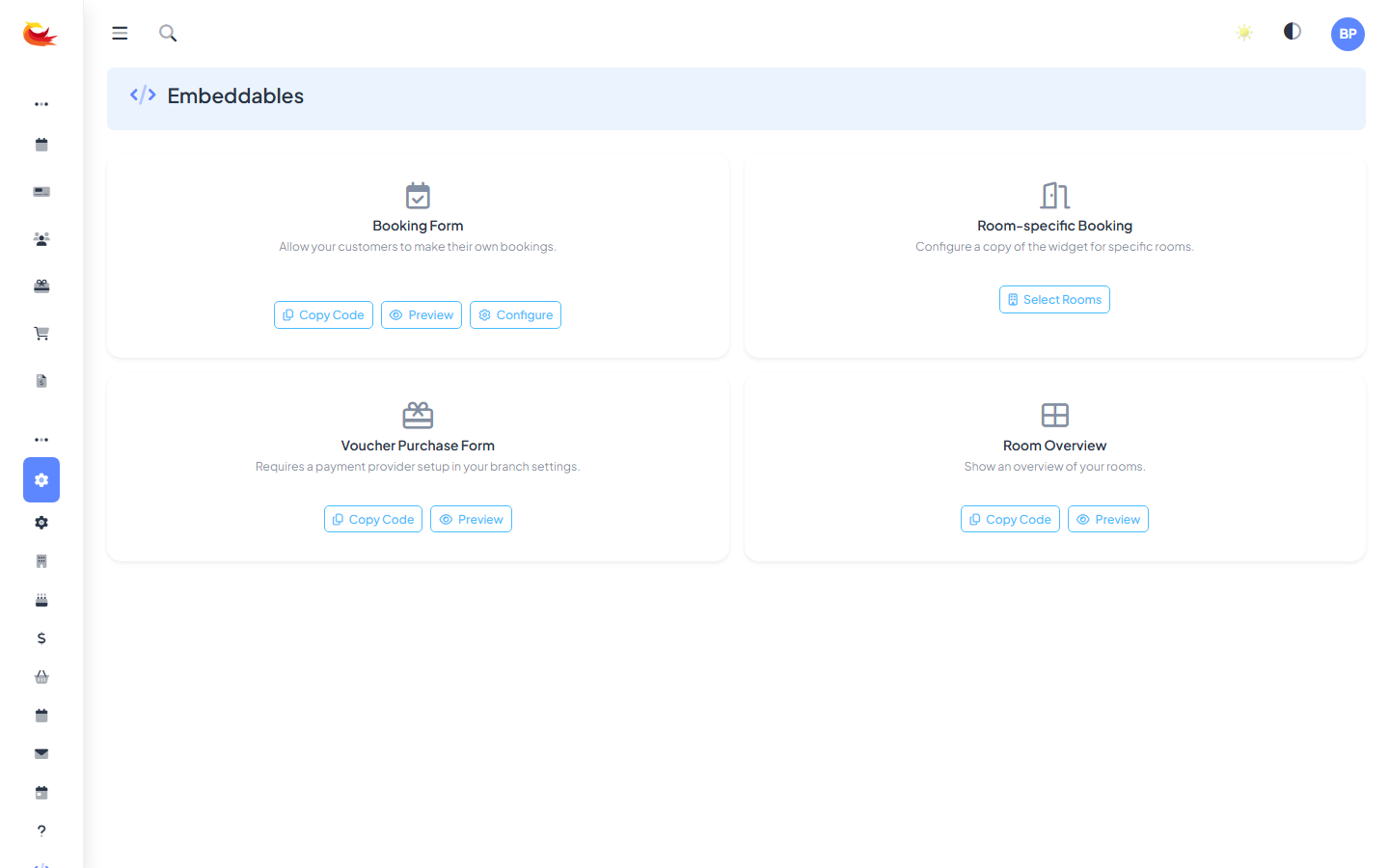
- Click Select Rooms.
- Tick the rooms you want this widget to include (one or more).
- The Copy Code and Preview buttons appear with code configured for those rooms.
- Click Copy Code.
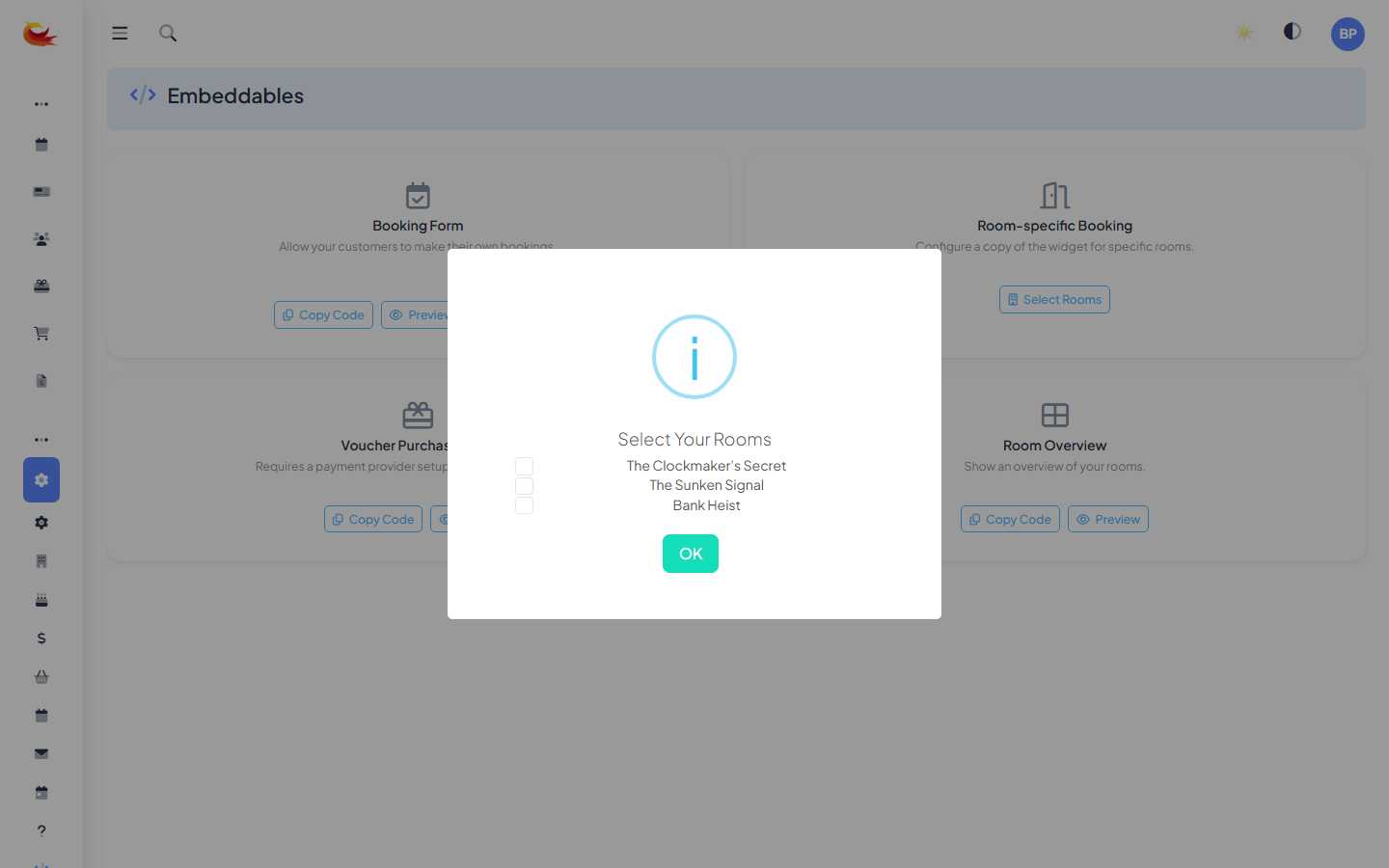
Paste the code
Paste the copied snippet into your website's HTML where you want the widget to appear. Same platforms as the main widget:
- WordPress — Custom HTML block in the page.
- Squarespace — Code block.
- Wix — Embed HTML element.
- Raw HTML — paste in the body of the page.
The widget loads and shows only the rooms you selected. Customers pick a slot, enter details, pay — same flow as the all-rooms widget.
Multiple room pages — do this once per page
If you have 5 rooms on 5 pages, you need 5 different snippets — one per room. Generate each one separately on the Embeddables page and paste each on the matching marketing page. The configuration is stored in the generated code, not in a persistent template, so don't copy-paste the same snippet across pages expecting it to show different rooms.
Including multiple rooms
Tick multiple rooms if you want a page that shows a subset — e.g. your "Family-Friendly Rooms" page embeds a widget showing only the 3 family-rated rooms. Customers pick from the subset, not the full catalogue.
Customising the display
Room-specific widgets inherit the configuration of your main booking widget (colours, required fields, default view). Any changes you make in the main Booking Form's Configure panel apply to all room-specific widgets too — they share the same underlying settings.
Testing
Always test after embedding:
- Open the page on your live site.
- Confirm the widget loads and shows only the expected rooms.
- Pick a slot and complete a test booking with your own email.
- Refund and cancel when done.
Preview button
The Preview link on the Embeddables page opens the widget as customers would see it — same selection of rooms, same flow. Use this to check the look before embedding on your real site.
Updating the selected rooms
If you later want to change which rooms the widget shows:
- Go back to the Embeddables page.
- Update the room selection.
- Copy the new code.
- Replace the code on your website.
The existing code on your site is a snapshot of the selection at the time you copied it. Editing the selection in Booking Phoenix doesn't update already-deployed snippets — you need to replace them.
Analytics: which pages drive bookings?
All bookings from embedded widgets are attributed to the "widget" source in reports. To track which specific page a booking came from (for attribution), use UTM parameters on links to your room pages, and pull the referrer in the Bookings report's source-attribution view. Full UTM attribution support varies by widget version — ask support if you need per-page attribution.
Common pitfalls
- Pasted the wrong code — all pages show the same rooms because the same snippet was copy-pasted. Solution: regenerate each page's code separately.
- Room deactivated — a page shows no availability because the selected room was toggled inactive in Booking Phoenix. Solution: reactivate the room or update the selection.
- "Show on Booking Widget" off — the room has that toggle disabled. Room-specific widgets still respect it. Turn it on.
Was this article helpful?
That’s Great!
Thank you for your feedback
Sorry! We couldn't be helpful
Thank you for your feedback
Feedback sent
We appreciate your effort and will try to fix the article