The voucher purchase form lets customers buy gift vouchers directly from your website — they pick an amount, add a personal message, pay with a card, and the recipient receives a printable voucher PDF by email. Zero staff involvement. This guide covers embedding it and tuning the experience.
Prerequisites
- Stripe connected (see Setting Up Stripe) — the voucher purchase form requires card payment, no exceptions.
- At least one voucher template designed (the voucher PDF style) — see The Voucher Designer. The default template works out of the box if you skip this.
Grabbing the code
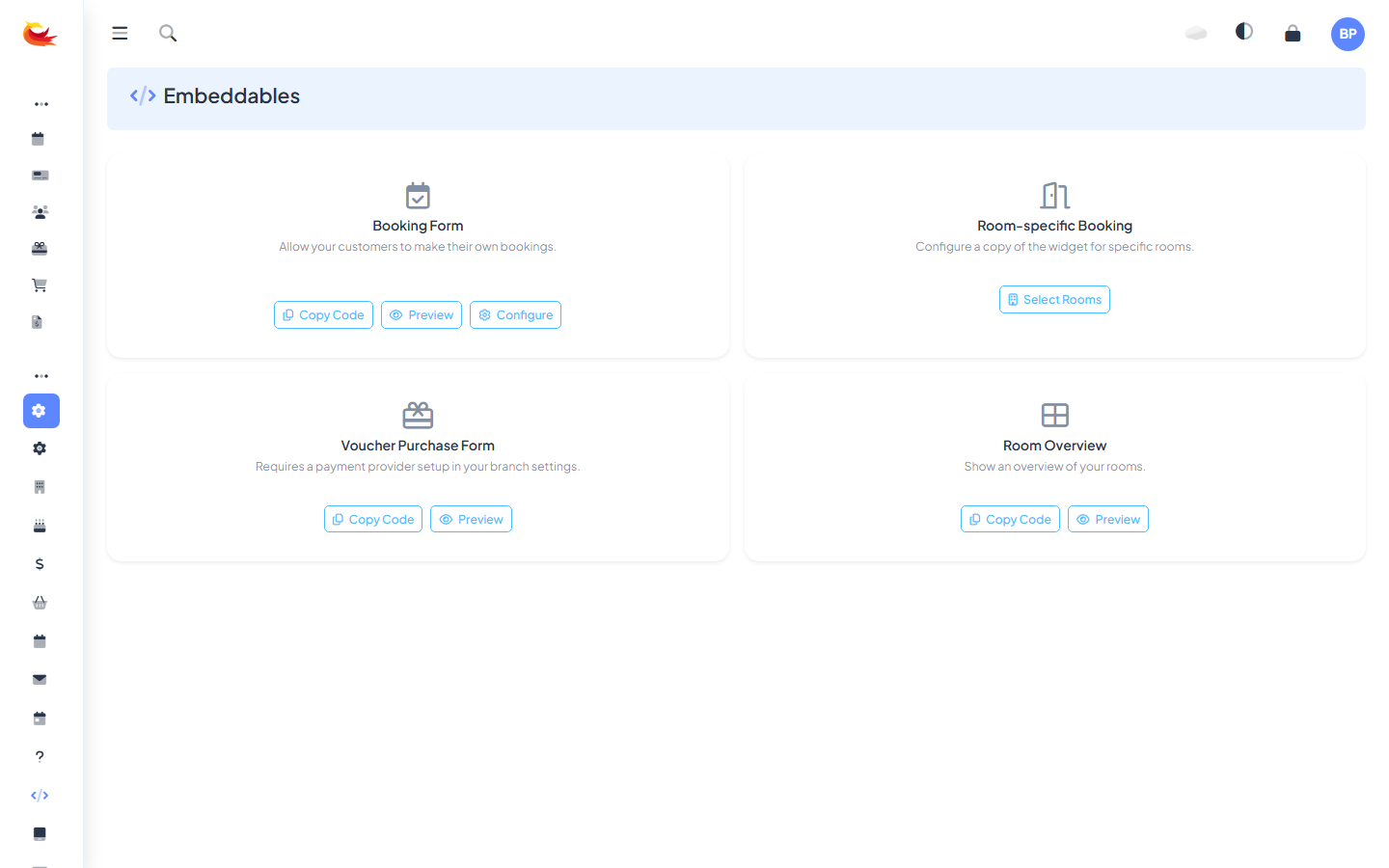
Go to Settings → Embeddables. Find the Voucher Purchase Form card.
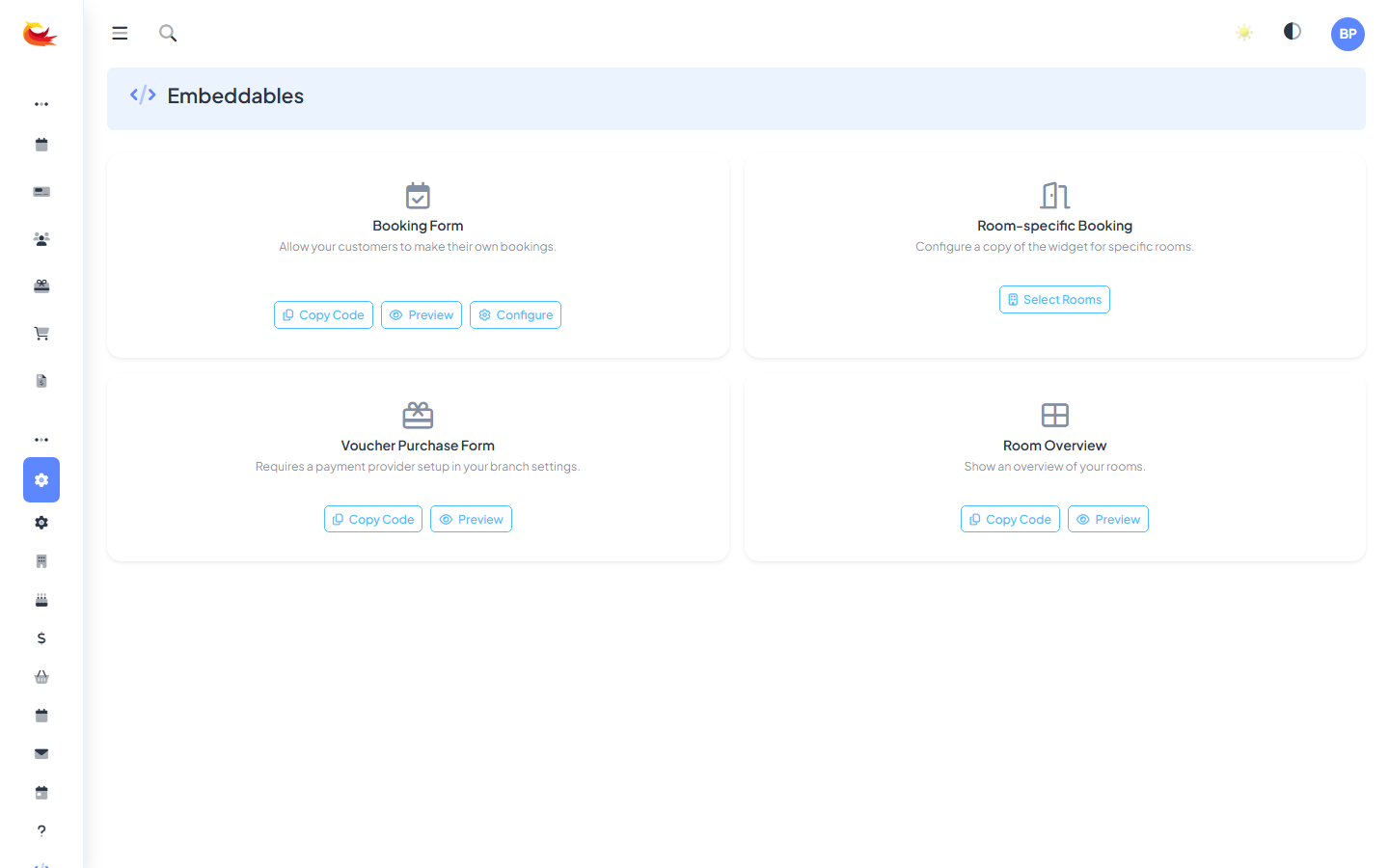
Click Copy Code. The HTML snippet is copied to your clipboard.
Where to embed it
The most common pattern is a "Gift Vouchers" page on your main navigation — either as a top-level menu item or under "Book Now" / "Buy". Pages where voucher forms work well:
- A dedicated "Buy a Gift Voucher" page with marketing copy + the form at the bottom.
- The footer of every page as a small "Gift it" link leading to the gift voucher page.
- Your "Book Now" page with a "Not sure of a date? Buy a voucher instead" section.
Paste it in
Same pattern as the other widgets:
- WordPress — Custom HTML block.
- Squarespace — Code block.
- Wix — Embed HTML element.
- Raw HTML — paste in the body.
The form loads showing amount options, recipient details fields, and a Stripe-powered card input.
The customer flow
- Pick amount — either from preset amounts you've configured ($50, $100, $200) or a free-form input if you've enabled custom amounts.
- Recipient details — name, email, personal message.
- Purchaser details — their name, email, phone (so you can contact them if needed).
- Card payment — via Stripe.
- Confirmation — purchaser sees a thank-you page; recipient gets the voucher PDF by email.
Configuring amounts
Go to Settings → Branch → Vouchers (or similar, depending on your branch setup). Configure:
- Preset amounts — the buttons shown on the form. Good range: $50, $100, $150, $200.
- Allow custom amount — whether customers can type any amount.
- Minimum / maximum — guardrails on custom amounts.
- Default expiry — how long a purchased voucher is valid for (commonly 1–3 years, per local consumer protection law).
Branding
The embedded form inherits branding from your Branch Settings — logo, colours, fonts. For a consistent experience, make sure your branch branding is set up correctly (see Branch Basics). The voucher PDF that's emailed to the recipient uses your voucher template (see The Voucher Designer).
What happens after purchase
- The purchase is recorded in Booking Phoenix as a new voucher.
- The card is charged via Stripe — payment appears in your next payout.
- The recipient receives an email with the voucher PDF attached.
- The purchaser receives a receipt email.
- The voucher appears in your Vouchers list with the code, amount, and expiry.
Everything after this is a normal voucher — it can be redeemed against a booking using the voucher's code (see Redeeming a Voucher).
Delayed delivery
A nice touch: let customers schedule the voucher email for a future date (e.g. "email it on my friend's birthday"). If your configuration supports this, a date picker appears on the purchase form. The voucher is created immediately but not emailed until the delivery date.
Customisation
The form supports some theming through the Configure button on the Embeddables page — colours, button styles, the form layout. For deeper customisation (custom fields, different flows), ask support.
Abandoned purchases
Customers sometimes start buying a voucher, add the recipient details, and drop off before paying. Booking Phoenix doesn't currently capture abandoned purchases as leads — if a customer hits the form but doesn't complete, there's no record. For retargeting, use Facebook Pixel or similar on your gift voucher page.
Testing
Always test with a real card before announcing:
- Pick a small amount ($5 or the minimum).
- Fill in recipient details (yourself, or a test account).
- Fill in purchaser details with a distinct email.
- Pay with a real card.
- Check both emails arrive — receipt to the purchaser, voucher PDF to the recipient.
- Refund the voucher (see Processing Refunds) to clean up.
Troubleshooting
Form appears but "Buy" is disabled
Stripe isn't connected. The form requires card payment. Go to your payment settings and set up Stripe.
"No amounts configured"
You haven't set up preset amounts yet. Go to Branch → Vouchers and add at least one preset.
Recipient didn't receive the voucher
Check the Email Delivery report. Likely causes: wrong email entered at purchase, caught by spam filter, mailbox full. You can resend the voucher from the voucher's detail page.
Card declined at purchase
Stripe's decline message appears on the form. Customer can try a different card, or contact their bank. You don't need to do anything — no charge was made.
Tips
- Seasonal promo — for December/Valentine's, add prominent links to the voucher page. Most voucher revenue comes from gift-giving seasons.
- Pair with experiences — on each room's marketing page, add a "or buy it as a gift voucher" link to the voucher form. Captures customers who can't commit to a date.
- Printable at home — the PDF is designed to print well on home A4/Letter paper. Tell purchasers this explicitly; they'll buy more if they know the recipient can hand it over on the day.
Was this article helpful?
That’s Great!
Thank you for your feedback
Sorry! We couldn't be helpful
Thank you for your feedback
Feedback sent
We appreciate your effort and will try to fix the article