A gift voucher is a stored-value code that a customer buys (or you issue) and later redeems against a booking. Vouchers are different from discount codes: discounts reduce the price, vouchers pay for it. This guide covers creating them from the staff side. For self-serve voucher purchase, see Adding a Voucher Purchase Form.
Open the vouchers page
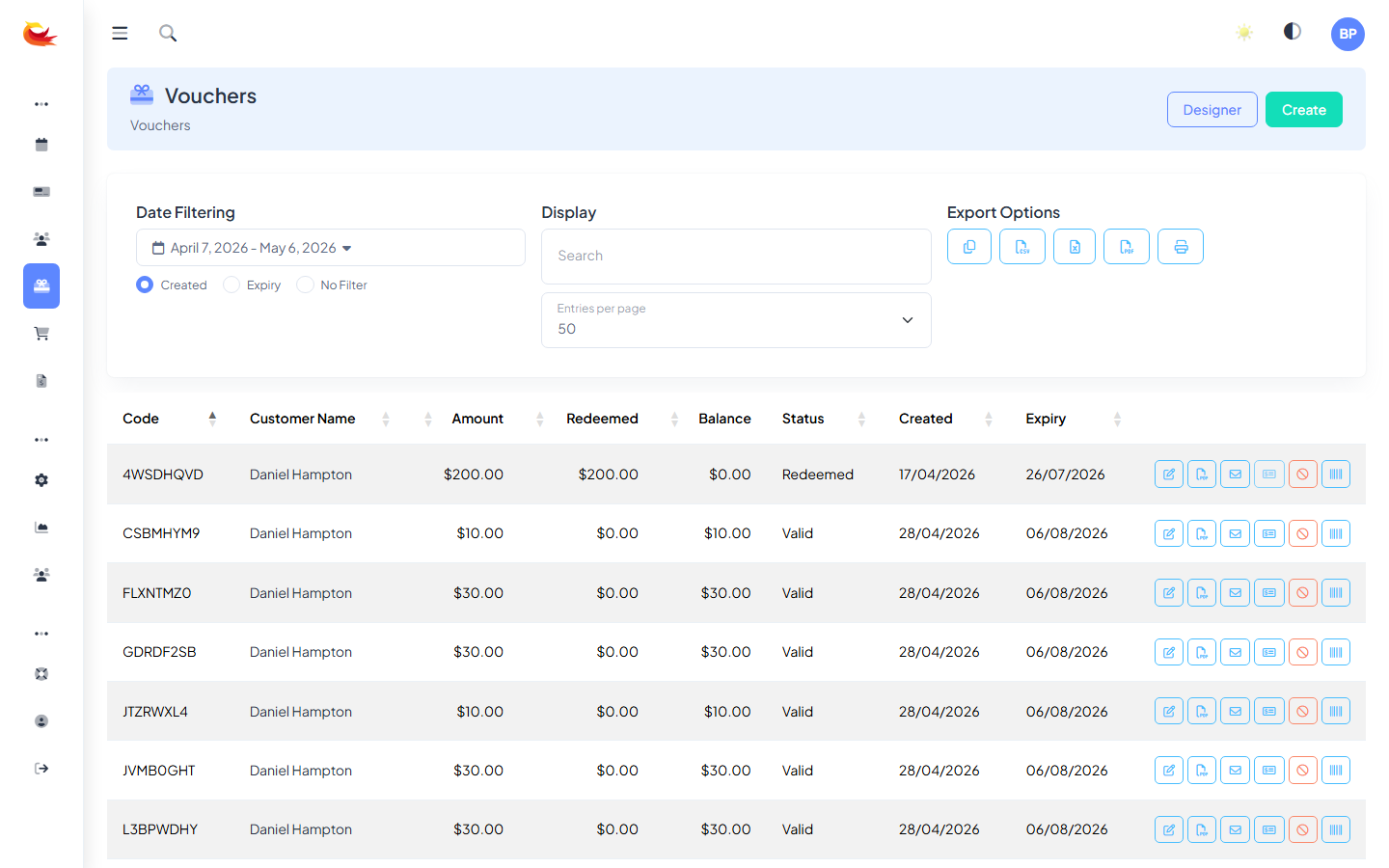
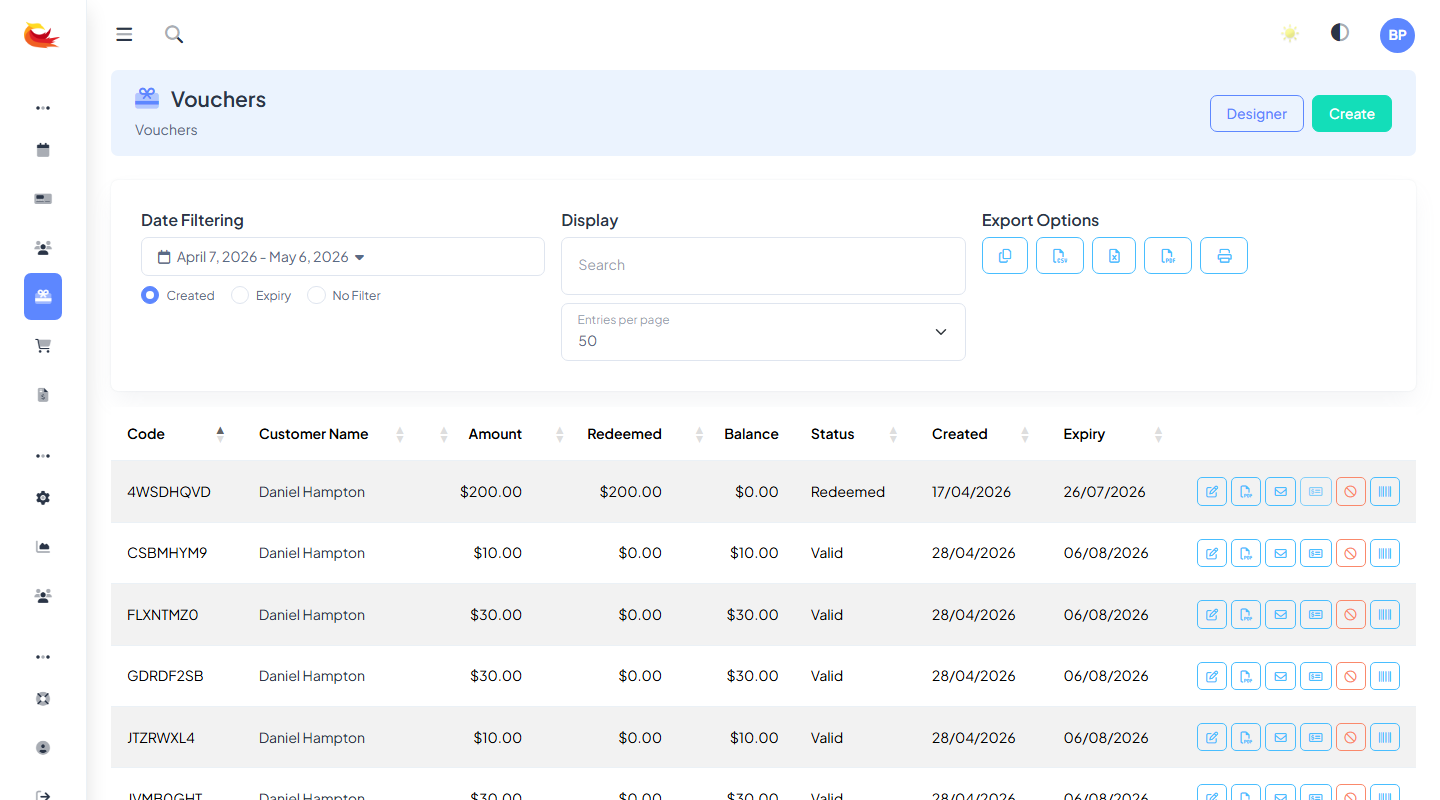
Go to Vouchers from the main menu. You'll see a list of every voucher with its code, customer (if any), amount, how much has been redeemed, balance, status, created date, and expiry.
Issuing a voucher
Click Create (top right). Fill in:
Basic details
- Amount — the voucher's face value. Stored as a balance; the customer can redeem partially or fully.
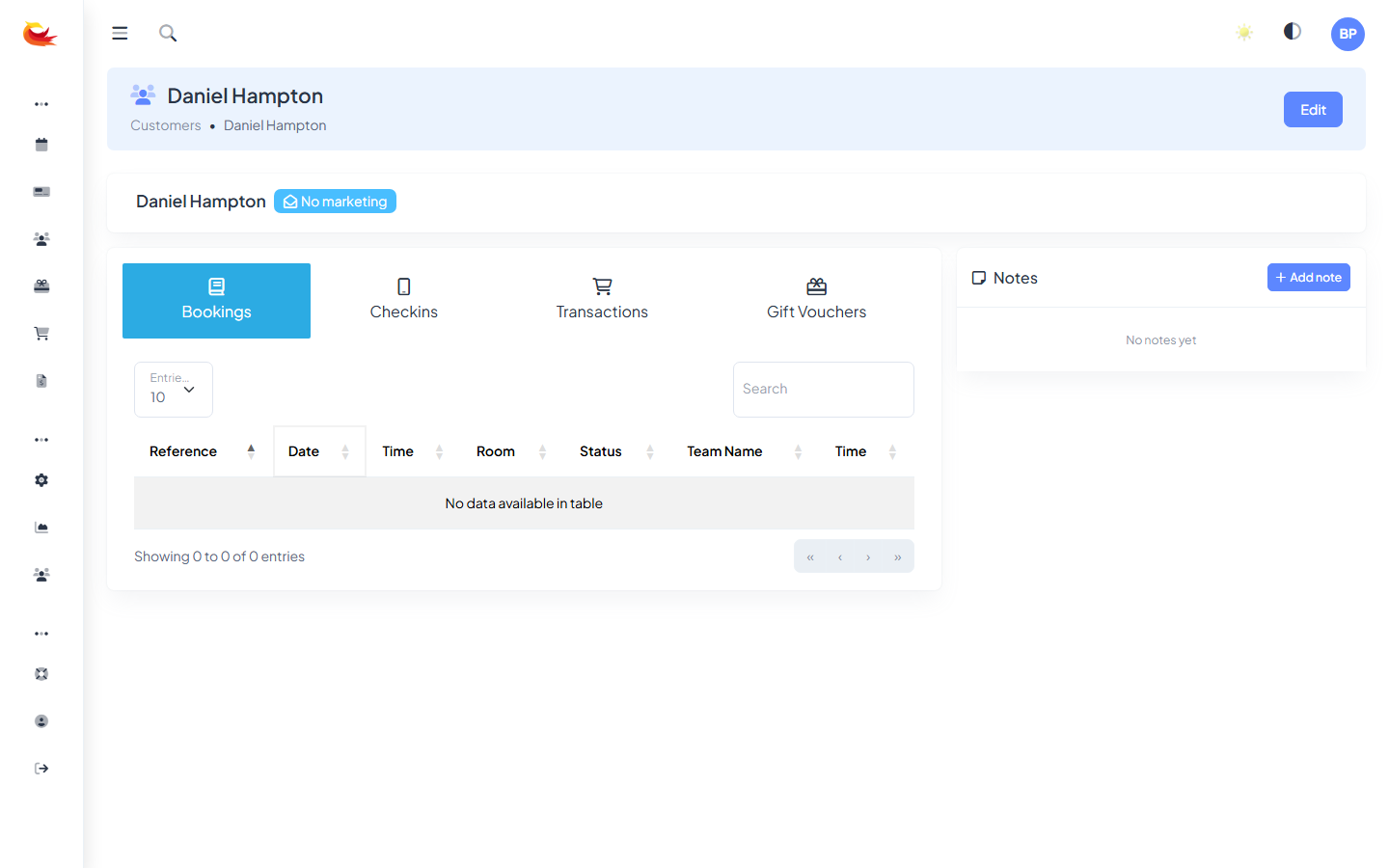
- Customer — optionally link the voucher to an existing customer. Leave blank for a generic voucher that anyone with the code can redeem.
- Recipient name — who the voucher is for (not necessarily who bought it). Appears on the printed voucher.
- Recipient email — if filled, the voucher PDF is emailed to them.
- Message — a personal note shown on the printed voucher ("Happy birthday, Sam!").
Expiry
Vouchers have an expiry date. Most jurisdictions have consumer protection laws setting minimum validity periods for gift vouchers — check yours. Common settings:
- 3 years from issue (NZ/AU common default, matches local law).
- 1 year (short-validity promo vouchers — check legality).
- Specific date (e.g. "Expires 31 Dec 2027").
Code
A unique redemption code is generated automatically. You can customise it (e.g. "SAMS-VOUCHER") if you want a branded code — must still be unique across your tenant.
Payment
If the voucher was purchased by a customer, record the payment the same way you would for a booking:
- Card (Stripe) for phone/in-person purchases.
- Cash / EFTPOS manually.
- Skip payment if you're issuing the voucher for free (comped).
Designing the voucher
The voucher PDF uses a template you can customise in the Voucher Designer. By default it includes your branding, the amount, recipient name, and code. See The Voucher Designer for customising the layout.
Delivering the voucher
Three ways the customer receives it:
- Email — if you filled in the recipient email, the voucher PDF is emailed automatically on save.
- Print — click Print on the voucher record to download the PDF for printing (greeting-card style).
- Digital link — the voucher page has a public link you can copy and share. Customer redeems by entering the code on your widget.
Comped / promotional vouchers
For promotional vouchers (prizes, compensation, goodwill), create the voucher and skip the payment step. The voucher has value to the customer but no payment is recorded on your end — which means refund behaviour treats it as a write-off rather than a cash return.
Tracking
Voucher analytics live on the Voucher Sales report:
- How many were issued in a period.
- Total face value issued.
- How much has been redeemed.
- Outstanding liability (unredeemed balance) — important for accounting.
Voiding a voucher
If a voucher is issued in error, open it and click Void. The balance is zeroed out and the code stops working. If the customer had paid for the voucher, issue a refund separately.
Bulk voucher issuing
For bulk scenarios (a corporate buying 50 vouchers for staff), you can either create them one by one, or ask support for a bulk-import template. The bulk import issues codes in batches and emails them to a list — saves an afternoon of clicking.
Common questions
Can a voucher be used for any room? Yes by default. You can restrict to specific rooms with per-voucher rules, but the standard voucher is a stored-value code usable against anything bookable.
What happens if the booking is less than the voucher balance? The voucher covers the booking, and the remaining balance stays on the voucher for future use.
What happens if the booking is more than the voucher balance? The voucher is applied fully, leaving a balance owing that the customer pays by card or cash.
Can a voucher be transferred? Yes — any holder of the code can redeem it. Vouchers aren't locked to the customer record unless you build policies around that manually.
Was this article helpful?
That’s Great!
Thank you for your feedback
Sorry! We couldn't be helpful
Thank you for your feedback
Feedback sent
We appreciate your effort and will try to fix the article