The Room Overview is an embeddable component that shows a gallery of your rooms — photos, names, descriptions, and a click-through to book each one — without being the booking form itself. Use it on your homepage or an "Our Rooms" page as a catalogue that drives traffic to your booking flow.
When to use it
The Room Overview is for browsing, not booking. If a visitor lands on your homepage not sure what you offer, the overview gives them a visual shortlist to explore. It's not a replacement for the Booking Widget — use both:
- Homepage — Room Overview to show off what you have.
- Per-room marketing page — a Room-Specific Booking Widget for the actual booking.
- "Book Now" page — the full Booking Form.
Grabbing the code
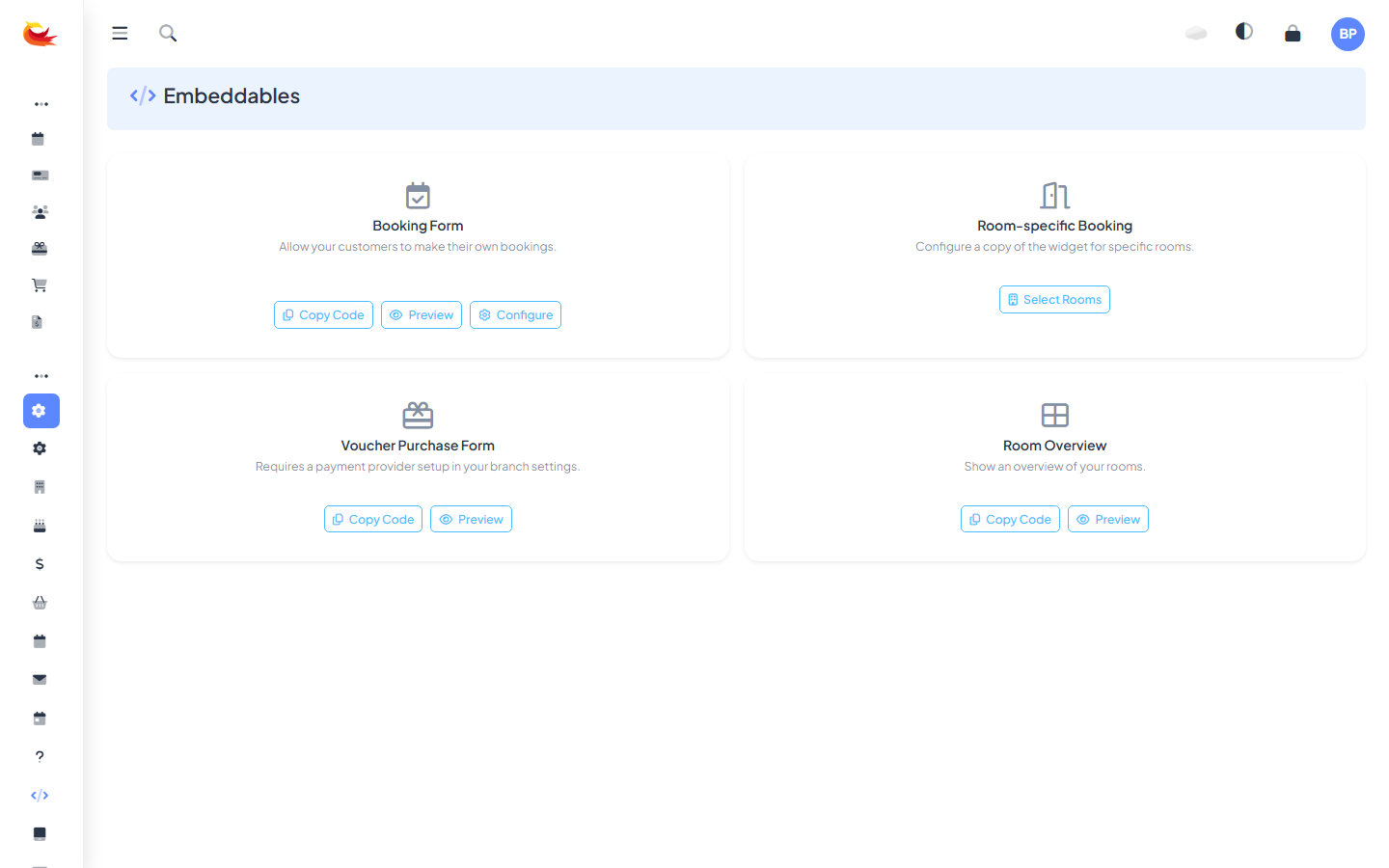
Go to Settings → Embeddables. Find the Room Overview card.
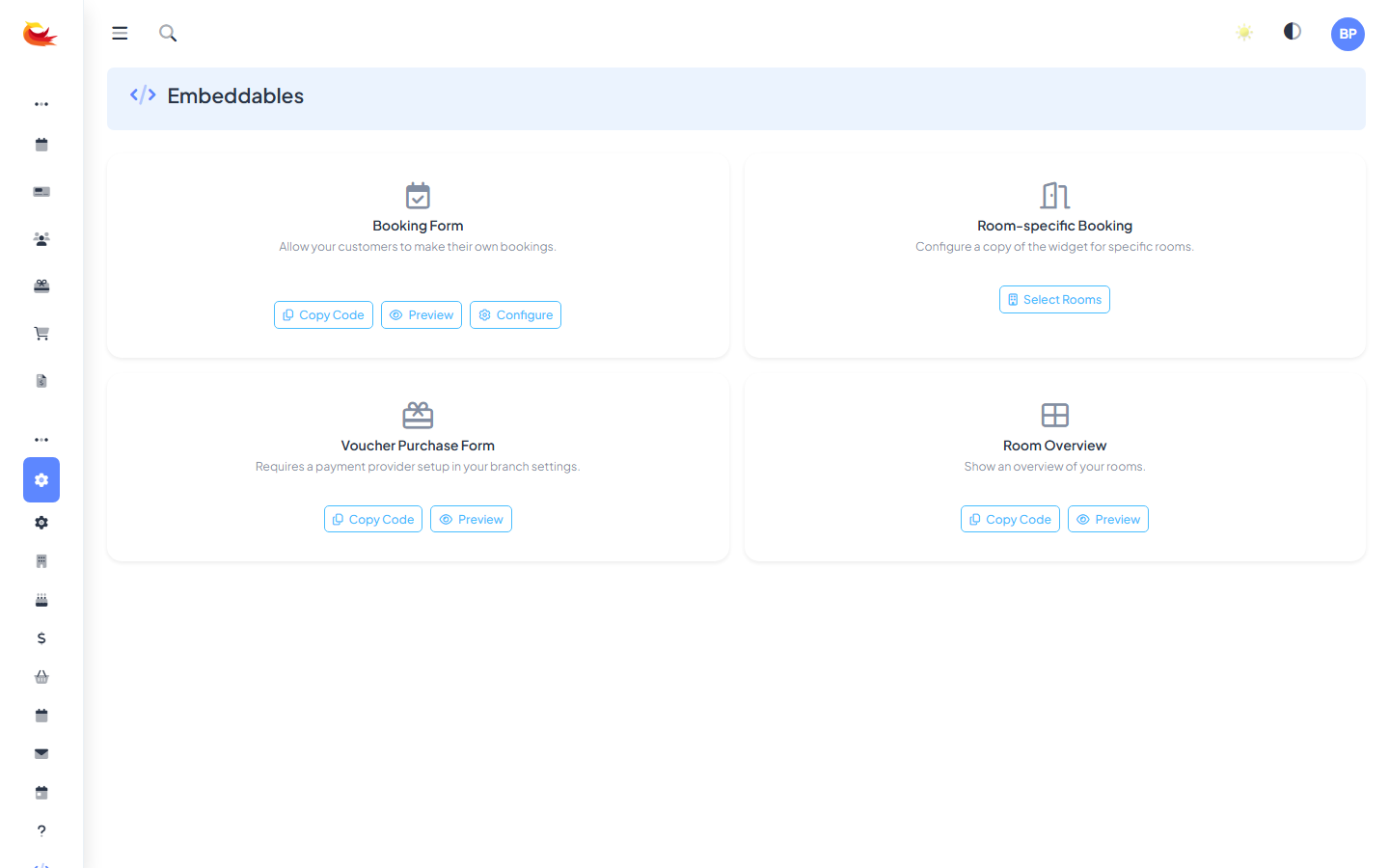
Click Copy Code. Paste the snippet into your website the same way as other widgets (WordPress Custom HTML block, Squarespace Code block, Wix Embed HTML, or raw HTML).
What customers see
The embedded overview renders a responsive grid of room cards. Each card shows:
- Room photo (the image you uploaded when creating the room).
- Room name.
- Short description.
- Player range (e.g. "2–6 players").
- A "Book Now" button linking to the booking flow for that room.
Which rooms appear
Every room that has Show on Booking Widget enabled appears in the overview, in the order set by the room's Sort Order field. To control the order:
- Go to the room edit modal.
- Adjust the Sort Order field (lower numbers appear first).
- Save.
Hiding a room from the overview
Two options:
- Turn off Show on Booking Widget — hides from overview and booking widget.
- Mark as inactive — hides everywhere.
There's no way to have a room bookable but hidden from the overview without also hiding it from the main widget — they share the same visibility flag.
Coming soon rooms
If a room has Show as Coming Soon enabled, it appears in the overview with a "Coming Soon" badge but no Book Now button. Useful for marketing a future launch.
Styling
The overview inherits your branch's brand colours and fonts. You can't customise the grid layout directly — it's responsive and adapts to the width of your page container. For tighter control over where rooms appear on your site, consider building your own room tiles in your CMS and linking directly to each room's booking URL.
Per-room deep links
Each Book Now button links to a URL like yourvenue.com/room/haunted-mansion/ (or similar, depending on your clean URL setup). You can use these URLs anywhere — an email, a social post, a third-party listing. The link lands the visitor directly in the booking flow for that room.
Preview and testing
Click Preview on the Embeddables page to see the overview as customers would. Make sure every room you want visible is present, and sort order is correct. After embedding:
- Load the page on your live site.
- Click through a few rooms to the booking flow.
- Confirm each lands on the right room with availability showing.
Common pitfalls
- Missing room photos — rooms without a photo show a generic placeholder. Upload photos for every room before embedding (see Creating a Room).
- Descriptions too long — the overview uses the room's Short Description, not the full one. Keep short descriptions under 100 characters.
- Sort order all zeros — if every room has sort order 0, the display order is effectively random (or by room ID). Set explicit orders for the rooms you want prominent.
- Old photos — customers judge by images. Refresh room photos periodically.
SEO considerations
The overview is rendered via JavaScript after the page loads, so search engines may or may not index the room content depending on how they handle JS rendering. If SEO matters for your rooms:
- Maintain a matching set of real HTML content on your site (your own "Our Rooms" page with hand-written descriptions).
- Link from that HTML page to the individual room booking URLs.
- Use the embedded overview as a secondary, visual element rather than your only room catalogue.
For most venues this doesn't matter much — customers find you by brand name and click through. If you're competing for generic search terms ("escape rooms near me"), invest in the real HTML content too.
Was this article helpful?
That’s Great!
Thank you for your feedback
Sorry! We couldn't be helpful
Thank you for your feedback
Feedback sent
We appreciate your effort and will try to fix the article