Booking Phoenix has a library of built-in reports covering bookings, revenue, room utilisation, customer behaviour, and staff activity. This guide gives a map of what's there and when to use each one. For custom reports see Using the Report Builder.
Where to find reports
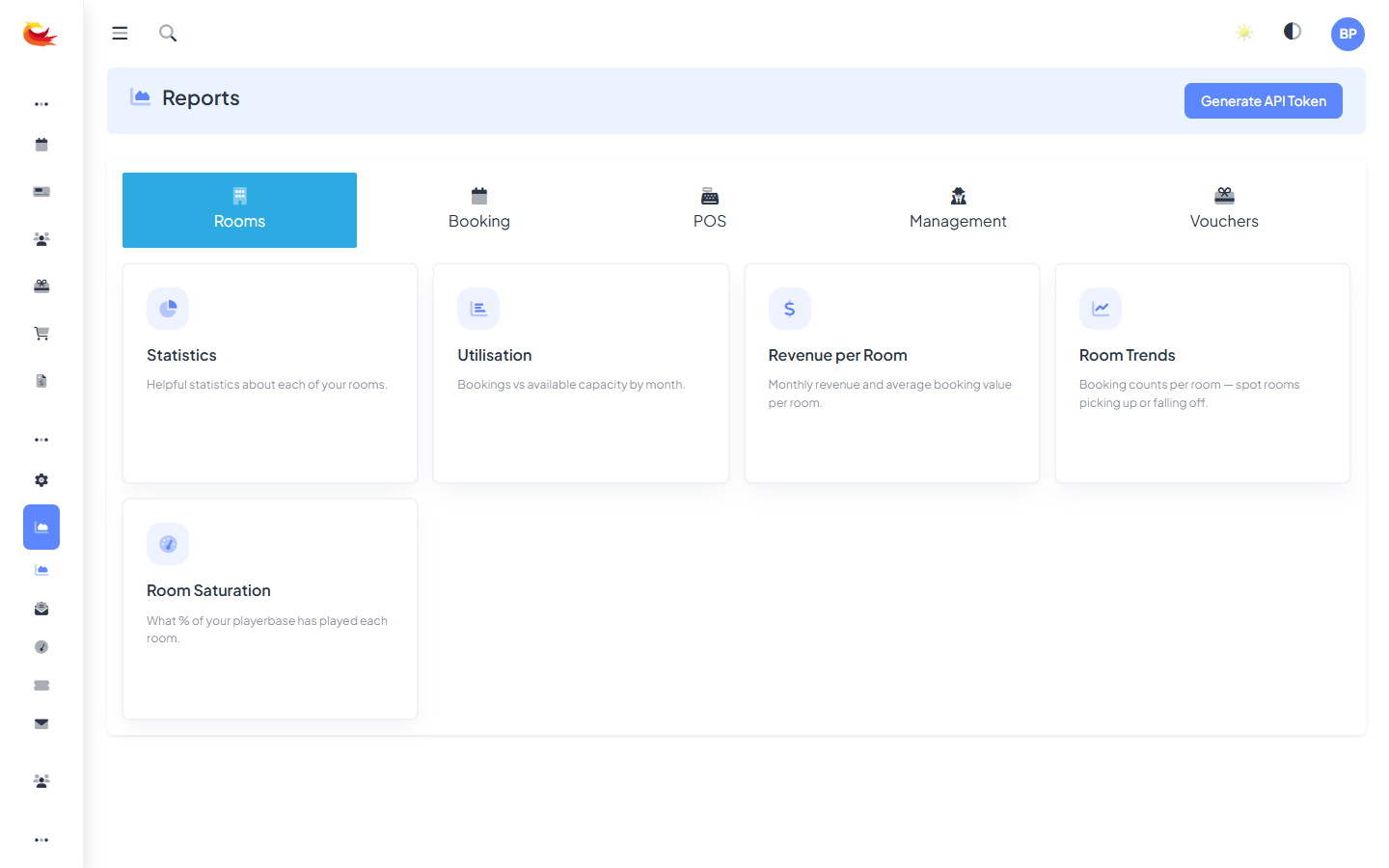
Go to Reports from the main menu. The landing page groups reports by category.
Bookings reports
- Bookings by Date — what was booked and when, with filters for room, season, and status.
- Cancellations — cancelled bookings with reason, refund amount, and time-to-cancel.
- No-Shows — bookings flagged as no-show, grouped by customer or by room.
- Upcoming Bookings — forward-looking — useful for staff rostering.
Revenue reports
- Daily Revenue — totals by day, split by payment method and room.
- Payment Method Breakdown — how customers are paying (Stripe vs cash vs vouchers).
- Refunds Report — all refunds in a date range with reasons.
- Voucher Sales — gift vouchers issued, redeemed, and outstanding balance.
Room reports
- Utilisation — what percentage of your slots were booked vs available. The single best metric for "is this room worth running at this time?".
- Call Breakdown — per-room call-out of how full each slot was.
- Hourly Breakdown — bookings by hour of day, helpful for planning staff shifts.
- Leaderboard — top scores/times per room (if leaderboard is enabled).
Customer reports
- New vs Returning — how much of your business is new customers vs repeats.
- Top Customers — customers ranked by bookings or spend.
- Source Attribution — where bookings came from (widget, POS, phone, referral).
- Marketing Opt-in — size of your email list and growth over time.
Staff reports
- Auth Log — staff logins and user switches. Useful for troubleshooting "who made this change" and for security audits.
- Staff Activity — bookings taken, refunds processed, cancellations made, by user.
Operations reports
- Audit Log — every change to data (bookings edited, customers merged, settings changed) with before/after values.
- Email Delivery — whether transactional emails reached the customer.
Using filters
Every report has a filter panel at the top. Common filters:
- Date range — defaults to the current month. Use the presets (Today / This Week / This Month / This Year / Custom).
- Room — one or many rooms.
- Branch — if your tenant has multiple branches.
- Source — widget, POS, phone, etc.

Filters update the report live when you click Apply. URL parameters reflect the current filter state, so you can bookmark or share a filtered report.
Exporting
Every report has an Export button that downloads the current filtered view as CSV. Use this for:
- Month-end reconciliation against your accounting software.
- Sharing reports with accountants or owners who don't have Booking Phoenix access.
- Pivoting in Excel or Google Sheets for one-off analysis.
Scheduled reports
Some reports can be scheduled to email you on a recurring basis — daily takings, weekly utilisation, monthly staff activity. Look for the Schedule button at the top right of the report. Set the recipients, cadence, and filters; the system sends the report automatically.
Which report to start with?
If you're new to the reports section, the three that give you the most day-one value:
- Daily Revenue — "how's business?"
- Utilisation — "what rooms/slots are working?"
- New vs Returning — "how's our customer base growing?"
Everything else is useful in context, but those three cover the main weekly leadership questions.
Was this article helpful?
That’s Great!
Thank you for your feedback
Sorry! We couldn't be helpful
Thank you for your feedback
Feedback sent
We appreciate your effort and will try to fix the article