Booking Phoenix sends a set of automatic emails to customers — booking confirmation, reminder, cancellation, receipt, voucher delivery, and more. Each one uses a template you can customise — wording, branding, merge fields, and scheduling. This guide covers editing templates and previewing the result.
Opening email templates
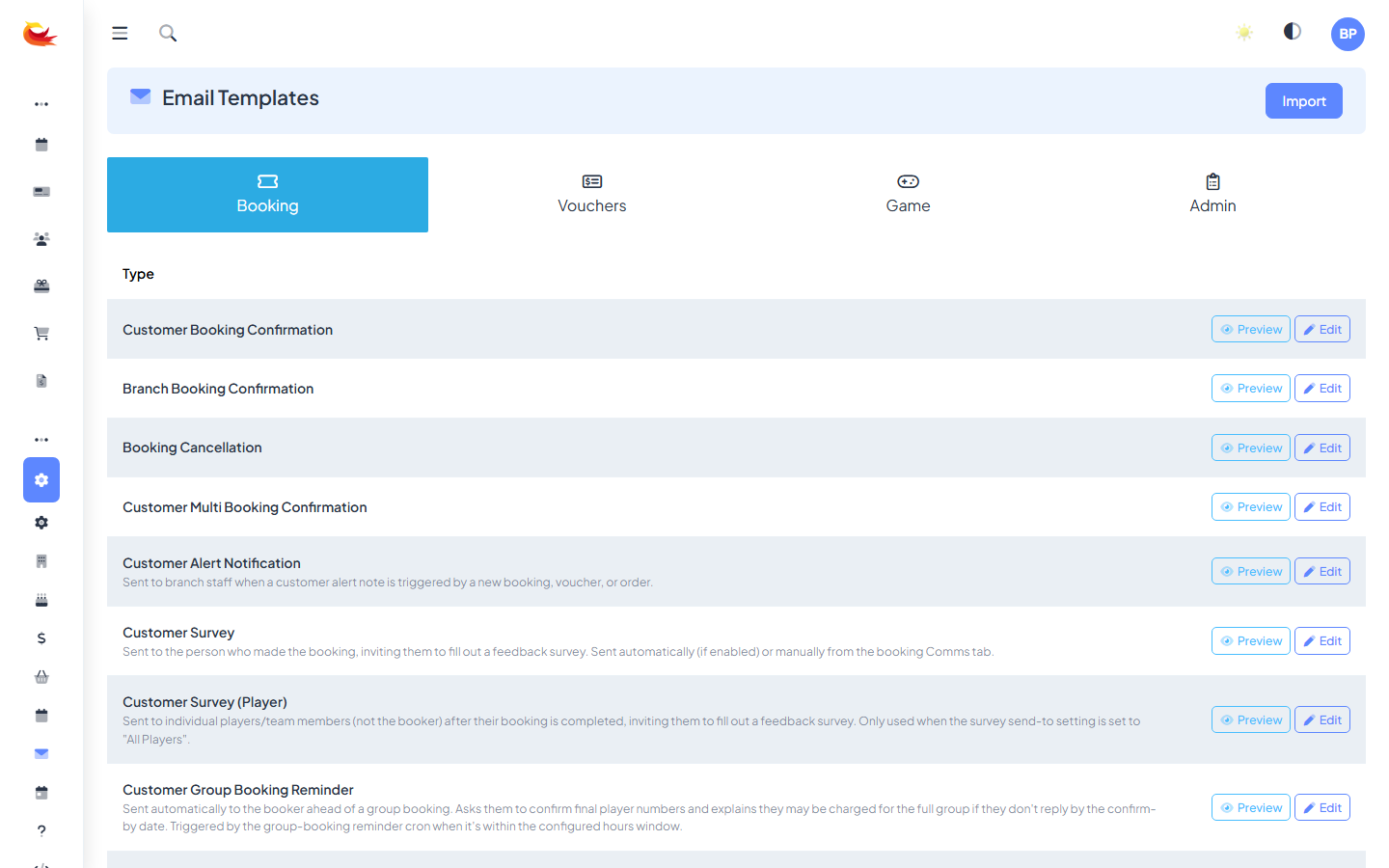
Go to Settings → Email Templates. The page lists every template with its status (Default / Custom) and last modified date.
Standard templates
- Booking confirmation — sent on booking creation.
- Booking reminder — sent 24h (or whatever you configure) before the booking.
- Rescheduled booking — sent when a booking is moved.
- Cancelled booking — sent when a booking is cancelled.
- Payment receipt — sent with every payment taken.
- Refund confirmation — sent with every refund issued.
- Voucher issued — sent with the PDF attachment when a gift voucher is created.
- Survey invitation — if you use surveys.
- Welcome email — sent on first booking.
- Branch customer alert — internal alert to staff when a flagged customer books.
Editing a template
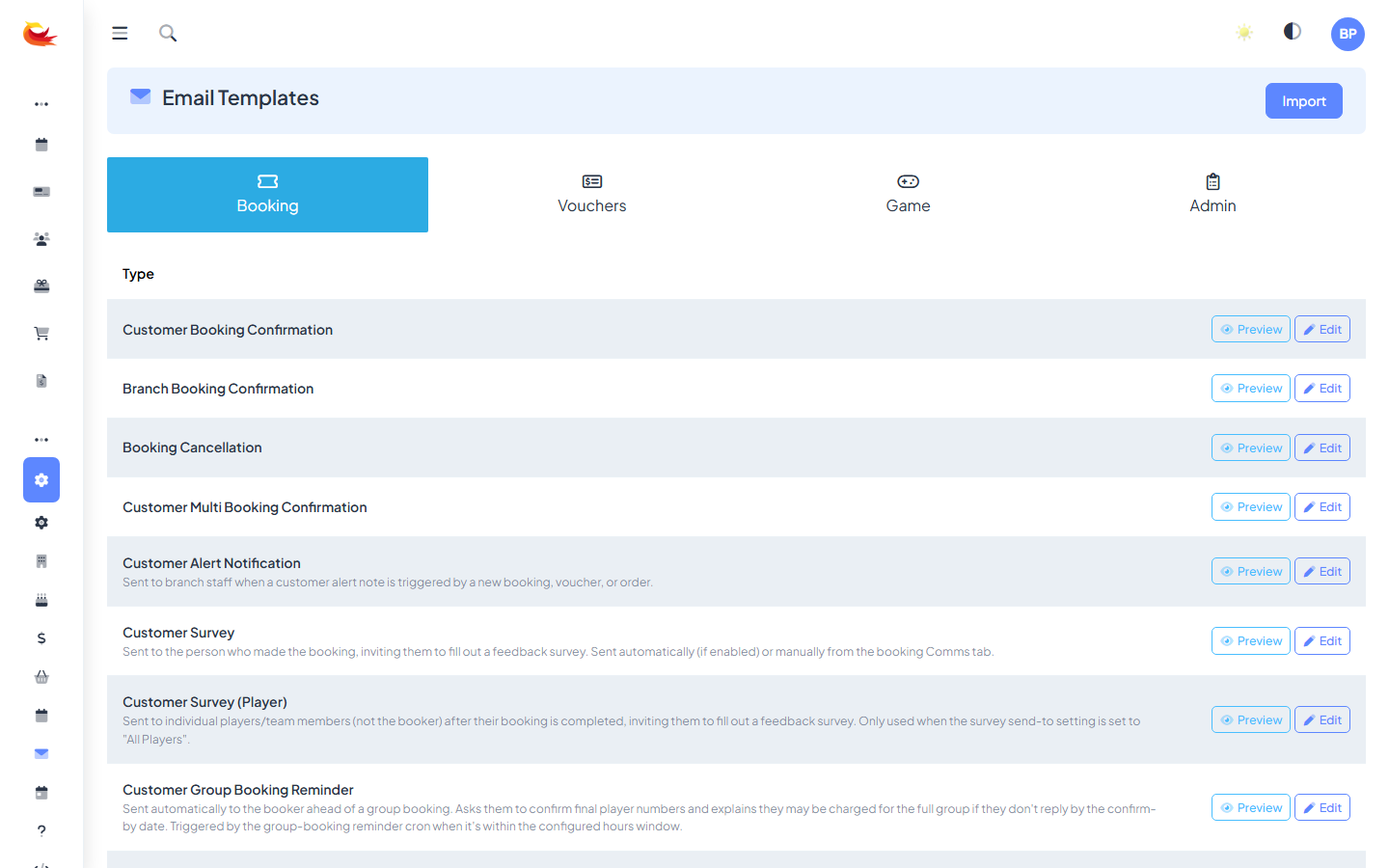
Click Edit on any template. You'll see:
- Subject line — what shows in the customer's inbox. Supports merge fields.
- Body — the email content, in a rich-text editor with HTML view available.
- Merge fields panel — a reference of available variables.
- Preview pane — renders the template with example data.
Merge fields
Merge fields substitute real data when the email is sent. Common ones:
{{ customer_name }}— customer's first name (or full name, depending on template).{{ booking_reference }}— the booking's reference code.{{ booking_date }}— formatted date.{{ booking_time }}— formatted time.{{ room_name }}— the room booked.{{ player_count }}— total players.{{ total_paid }}— amount paid including currency symbol.{{ balance_owing }}— if any.{{ venue_name }},{{ venue_address }},{{ venue_phone }}— branch info.{{ booking_url }}— public link to the booking for customer self-service.
The merge-fields sidebar in the editor shows the full list for each template — click a field to insert it at the cursor.
Styling
Every email inherits:
- Your branch logo (set in Branch Settings).
- Your brand colour (used for buttons and accents).
- A standard header/footer wrapper.
The template body is what you edit. You can add headings, bold, lists, images, buttons. For best results across email clients (which render HTML inconsistently), keep the formatting simple — stick to the editor's built-in styles rather than pasting rich HTML from elsewhere.
Preview with real data
Click Preview. The template renders with example data substituted for merge fields. Try desktop and mobile previews — most customer email is opened on phones.
If a template has conditional sections (e.g. "only show the balance owing if there is one"), the preview lets you toggle between scenarios.
Sending a test email
Click Send Test and enter an email address. You'll receive the fully-rendered template with example data. Always send a test to yourself after editing before the template goes live.
Reverting to default
If your customisations break something, click Reset to Default. The template reverts to the stock wording. You'll lose your customisations — make a backup first if needed.
Subject lines that work
- Booking confirmation — "Your booking at {{ venue_name }} is confirmed — {{ booking_date }}". Includes venue and date for scannability.
- Reminder — "Tomorrow: {{ room_name }} at {{ booking_time }}". Short, specific.
- Cancellation — "Booking cancelled — {{ booking_reference }}". Clear and factual.
- Receipt — "Receipt for booking #{{ booking_reference }}". Findable by accounting software.
Avoid:
- All caps — spam filters flag.
- Multiple exclamation marks.
- "Click here" in subject — low clickthrough.
- Overly long subjects — most mail apps truncate around 50 characters.
Body patterns that work
- Greeting — "Hi {{ customer_name }},"
- Headline — the key fact in one line. "Your booking is confirmed."
- Details table — date, time, room, player count, price.
- Practical info — arrival instructions, parking, what to bring, dress code.
- Call to action — one prominent button ("View my booking") linking to the booking URL.
- Contact info — phone and email for help.
- Footer — your address, social links, unsubscribe (for marketing emails).
Troubleshooting
Customer didn't receive the email
- Check the Email Delivery report (Reports → Email Delivery). Find the customer's address and see if the email was sent, delivered, bounced, or marked spam.
- Ask the customer to check spam/junk. Transactional emails sometimes get filtered on first send.
- Confirm the email address on the booking is correct.
Broken formatting
Usually caused by pasted HTML from Word, Google Docs, or web pages. Clear the formatting (Ctrl+Shift+V for "paste as plain text") and rebuild with the editor's own controls.
Merge field shows as {{ customer_name }} in the real email
The field name was typed manually and didn't match. Use the merge-fields sidebar to insert fields — it uses the exact name the template engine expects.
Marketing emails
Transactional emails (covered here) always send regardless of marketing consent. Marketing emails — newsletters, promotions — are a different system and respect the customer's marketing consent state. Don't put promotional content in transactional templates; it both annoys customers and can create compliance issues.
Was this article helpful?
That’s Great!
Thank you for your feedback
Sorry! We couldn't be helpful
Thank you for your feedback
Feedback sent
We appreciate your effort and will try to fix the article