Plans change. This guide covers editing the details of an existing booking, and cancelling one entirely.
Open the booking
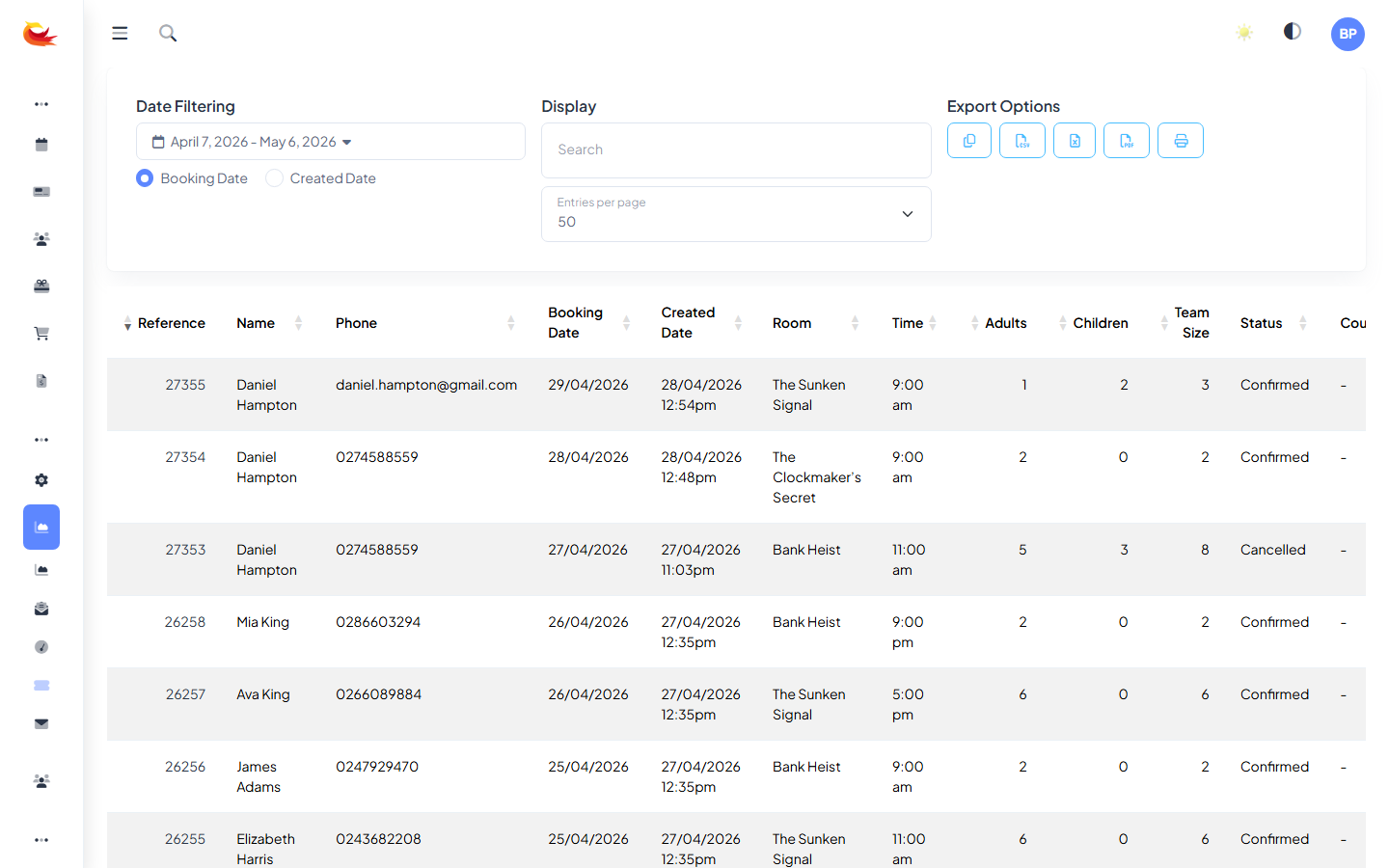
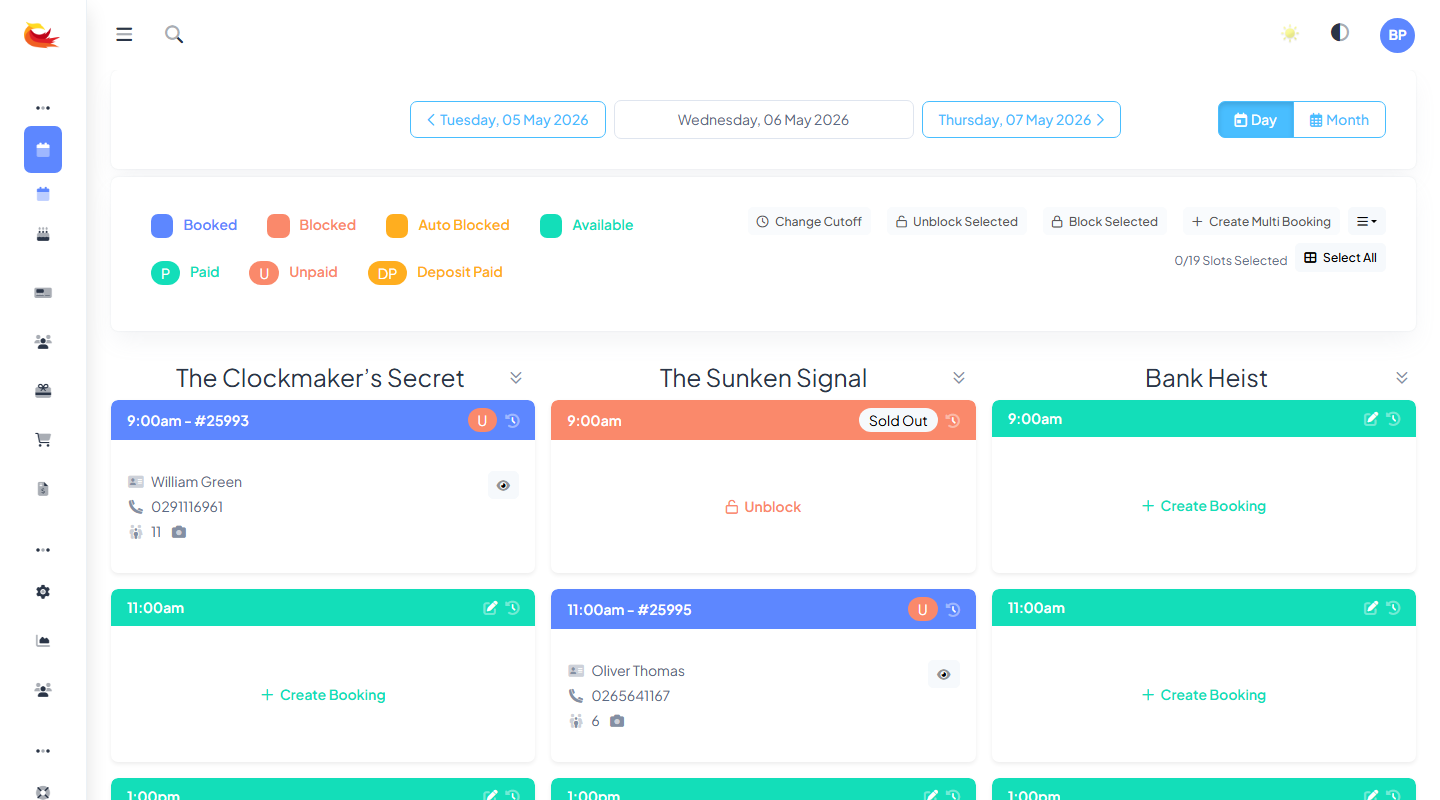
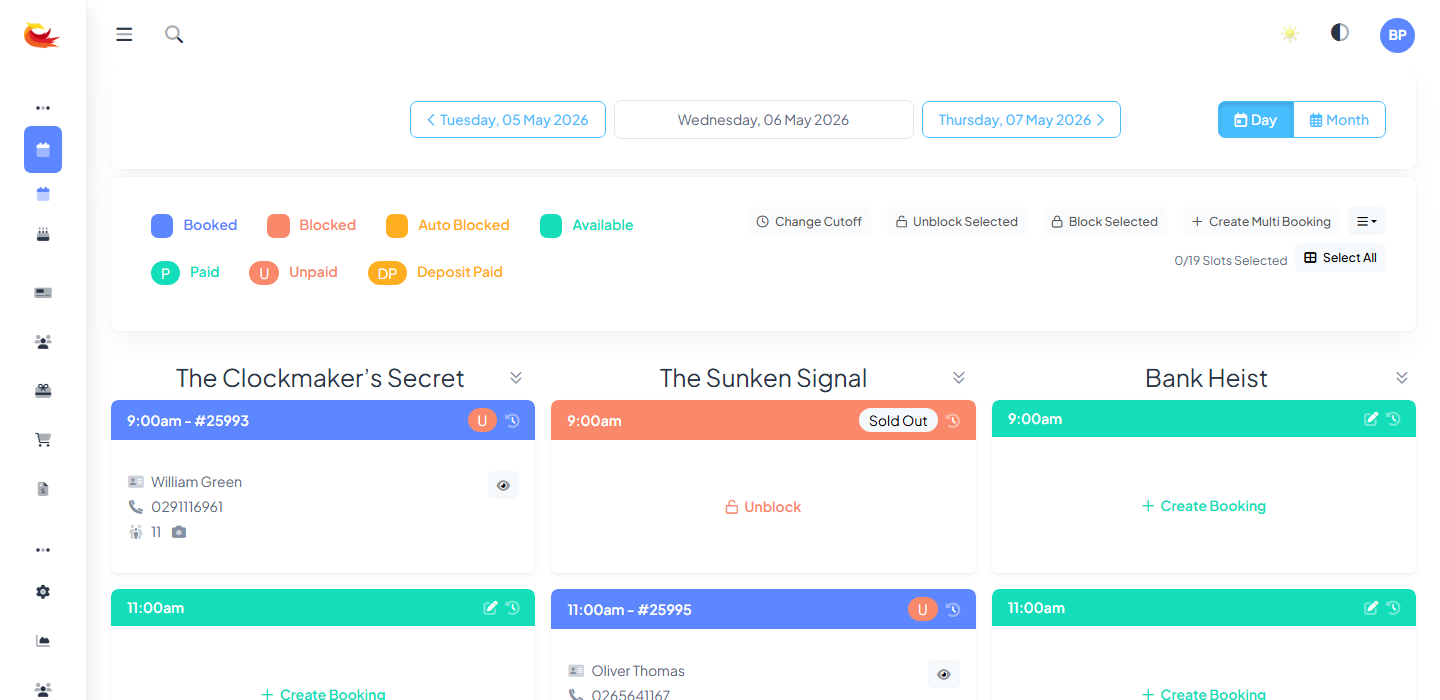
Find the booking one of three ways:
- Calendar — click the booking's coloured block on the time grid.
- Bookings list — the full-text search box at the top filters by customer name, email, phone, or reference.
- Customer record — open the customer and scroll to their bookings list.
Editing booking details
On the booking modal, you can edit:
- Player counts — increase or decrease numbers. The price recalculates based on your pricing groups.
- Customer — change the linked customer (useful if the booking was made on the wrong account).
- Upgrades and add-ons — toggle them on or off.
- Internal note — add or edit staff-only notes.
- Coupon / voucher — apply or remove.
After editing, the total at the bottom reflects the new amount. If the new total is higher than what's already been paid, you'll see a balance owing — take an additional payment. If it's lower, you may need to issue a refund (see Processing Refunds).
Click Save to apply your changes. A confirmation email is sent to the customer automatically unless you untick that option.
Changing the date or time
Date and time changes use a different flow — see Rescheduling a Booking. In short: click the Reschedule button on the booking rather than editing the date field directly, so availability checks and email templates fire correctly.
Cancelling a booking
Click the Cancel Booking button on the booking modal. You'll be prompted for:
- Cancellation reason — a short note for internal records (e.g. "customer sick", "double-booked", "no-show").
- Refund amount — how much to return to the customer. Defaults to the full amount paid; adjust if you're applying a cancellation fee.
- Refund method — either back to the original payment (Stripe refund), as a voucher/credit, or manual (for cash bookings).
- Notify customer — usually on; sends the cancellation email from your templates.
- Flag as no-show — optional. When on, a note is added to the customer's record so staff see it if the customer books again.
What happens when you cancel
- The booking moves to "Cancelled" status. It stays in the customer's record and in reports but no longer blocks the slot.
- Slot availability returns so someone else can book that time.
- If you refunded through Stripe, the refund is queued with Stripe and confirmed within a few seconds.
- The customer gets the cancellation email (if ticked).
- If "flag as no-show" was on, a persistent note is added to the customer's profile.
Un-cancelling
If a cancellation was made in error, open the cancelled booking and click Reinstate. This only works if the original slot still has availability — if someone else has since booked it, you'll need to rebook into a different slot.
Bulk cancellations
For large-scale cancellations (a weather event, a forced closure), don't cancel bookings one by one. Instead:
- Go to the affected room's Schedule page.
- Find the affected slots and either block them or mark them inactive for that date.
- Contact affected customers through their bookings list using the bulk email tool.
See Holding or Blocking Slots for the slot-side of this.
Was this article helpful?
That’s Great!
Thank you for your feedback
Sorry! We couldn't be helpful
Thank you for your feedback
Feedback sent
We appreciate your effort and will try to fix the article