Customers change their minds. This guide covers moving a booking to a new date, time, or room without losing payment history or having to re-take the whole booking.
1. Open the booking
Find the booking (Calendar, Bookings list, or from the customer's record) and open it.
2. Click Reschedule
On the booking modal, click the Reschedule button. This is different from editing the date field directly — Reschedule runs availability checks, moves any payment across, and sends the right email template.
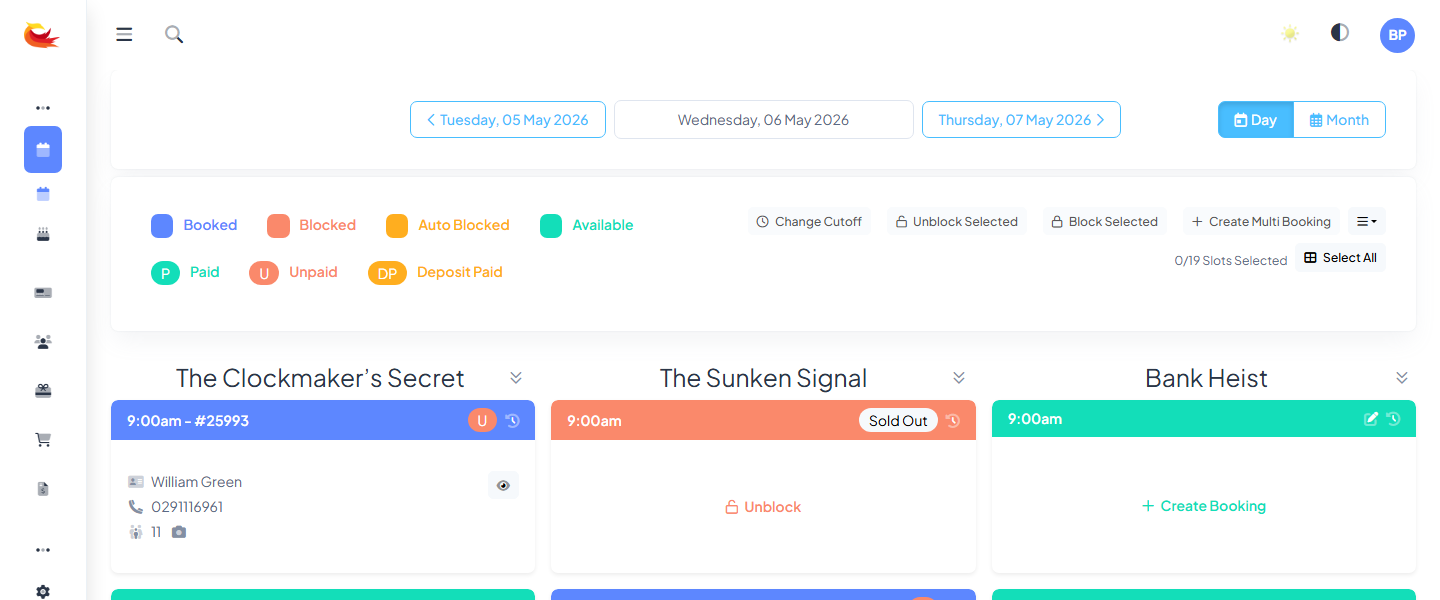
3. Pick the new slot
A mini calendar appears showing availability for the same room. Click any green slot to select it. If you need to move the booking to a different room, switch the room from the dropdown first — availability refreshes for the new room.
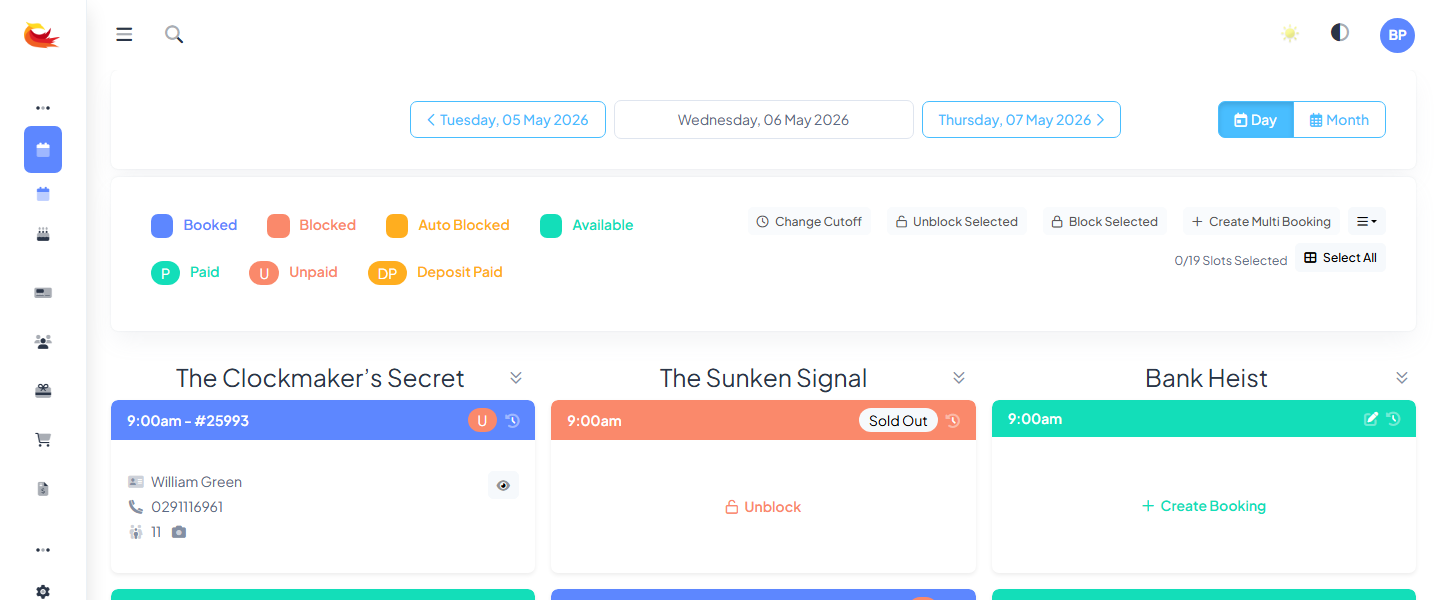
4. Confirm
Review the summary — old date/time, new date/time, any price difference. If the new slot has a different price (e.g. weekend vs weekday), you'll see the delta:
- More expensive — balance owing; take an additional payment before confirming, or confirm with balance due and collect on arrival.
- Less expensive — either leave as credit, refund the difference, or issue a voucher.
- Same price — no payment action needed.
Click Confirm Reschedule.
5. What happens
- The original slot's availability returns.
- The new slot's availability reduces.
- The booking keeps its original reference number and payment history.
- A reschedule email goes to the customer (on unless you untick it).
- An audit entry records the move for reporting.
Rescheduling to a room that isn't available
If every slot in the new date is full, the calendar shows no green cells — you can't confirm until one opens up. Options:
- Check alternative rooms or nearby dates.
- Cancel the booking outright and ask the customer to rebook when they have a date.
- Hold the slot for them (see Holding or Blocking Slots) so it's reserved while you confirm.
Rescheduling vs cancel-and-rebook
Prefer Reschedule every time. A cancel-and-rebook:
- Creates a new booking reference — confusing for the customer.
- Breaks the audit trail (a single customer journey becomes two separate bookings in reports).
- Can trigger two separate refund/payment events instead of one adjustment.
Only cancel-and-rebook when the customer is genuinely starting over with different players, different rooms, or both.
Reschedule fees
If your policy charges a reschedule fee, there's no built-in field for it today. The workaround: take an extra payment at the point of rescheduling (a manual charge) with "Reschedule fee" as the note. Keep the amounts consistent across staff to simplify reporting.
Was this article helpful?
That’s Great!
Thank you for your feedback
Sorry! We couldn't be helpful
Thank you for your feedback
Feedback sent
We appreciate your effort and will try to fix the article