Sometimes you need to stop a slot from being booked without there being an actual customer — for room maintenance, private events, public holidays, or staff training. Blocking removes a slot (or set of slots) from availability until you remove the block. This guide covers placing, removing, and bulk-managing blocks on the calendar.
calendar.view) and Edit Bookings (booking.edit). Assignable from Settings → Permissions — see Roles and Permissions.
What blocking does
A block marks a slot (or several) as unavailable. Effects:
- The booking widget shows the slot as unavailable to customers.
- The calendar shows the slot in the "blocked" colour with a small lock indicator.
- Staff can still override and book on top of a block if needed (for example, a customer calls back after you've blocked a slot for them).
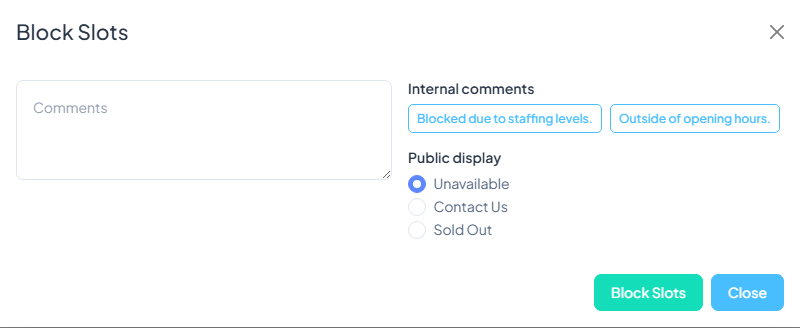
- An internal reason note is captured for audit purposes — never shown to customers.
Placing a block
- On the calendar, click the slot (or select multiple slots) you want to block.
- Click Block Selected in the toolbar at the top of the calendar.
- Pick the date or date range. By default the block applies just to today's instance of the slot — tick Apply to all matching slots in this date range to extend.
- Pick whether to block specific slots within the date range or every slot for those days.
- Add a reason note (shown internally, not to customers).
- Save.
Removing a block
Two ways:
- One slot at a time — click the blocked slot card and choose Unblock. The slot returns to its normal scheduled availability immediately.
- Bulk unblock — select multiple blocked slots on the calendar and click Unblock Selected in the toolbar.
Customers attempting to book the slot during the block will have seen "unavailable"; once you unblock, the widget shows the slot as bookable on the next refresh.
Blocking a whole day
To block every slot across every room for a whole day (e.g. Christmas Day, a forced closure), use the bulk-block option with all rooms and all slots selected. Faster than blocking each room one at a time.
For recurring closures (e.g. always closed on Mondays, or always closed for two weeks every winter), don't bulk-block individual dates. Instead create a Closed season covering the period with no time slots in it — cleaner long-term and easier in reporting. See Setting Up a Schedule.
Common reasons to block
- Maintenance or cleaning — specific slots while a room is offline.
- Private events — the room is booked, but not through the normal customer flow (e.g. an internal corporate event).
- Public holidays you're closed for — one-off blocks. For recurring holidays, see Alternative and Public Holidays.
- Staff training or walkthroughs — the room is in use by staff so customers can't book it.
- Weather closures — block the affected slots, then bulk-email the customers whose existing bookings are affected.
Reporting
Blocks don't directly affect revenue reports (they're not bookings). They do affect Occupancy — a blocked slot counts as unavailable, not as an unsold opportunity, so utilisation calculations stay honest. The reason note is recorded with the block and appears in the audit log.
Bulk-blocking tips
- Public holidays. Block your country's recognised public holidays for the whole year in one sitting at the start of January — saves ad-hoc scrambles.
- Weather closures. Block the affected date range first so no new customers can book; then contact the customers with existing bookings via the bookings list's bulk email tool.
- Seasonal closedowns. For extended closures (a 2-week winter break), prefer a Closed season over individual blocks — cleaner in reporting and faster to manage.
Common pitfalls
- Blocked one slot but the room is still bookable. Each slot is blocked individually. If you wanted the whole day blocked, select all slots for that day before clicking Block Selected.
- Forgot to unblock. Customers can't book a slot you've forgotten to unblock. Check the calendar weekly for unexpected blocks if business looks slower than expected.
- Blocked then booked anyway. Staff can override blocks. If you find a booking on a slot you intended to keep blocked, ask the team why — either the block was wrong or the override was.
- Reason note left blank. Future-you (or a colleague) won't remember why a slot was blocked three weeks ago. Always add a short note.
Was this article helpful?
That’s Great!
Thank you for your feedback
Sorry! We couldn't be helpful
Thank you for your feedback
Feedback sent
We appreciate your effort and will try to fix the article