Every booking is attached to a customer record. The customer record is the single place where all of a person's bookings, payments, vouchers, notes, and history live. This guide covers finding, editing, and merging customer records.
Finding a customer
Go to Customers from the main menu. The list shows every customer at your tenant; filter it with the search box at the top — matches by name, email, or phone.
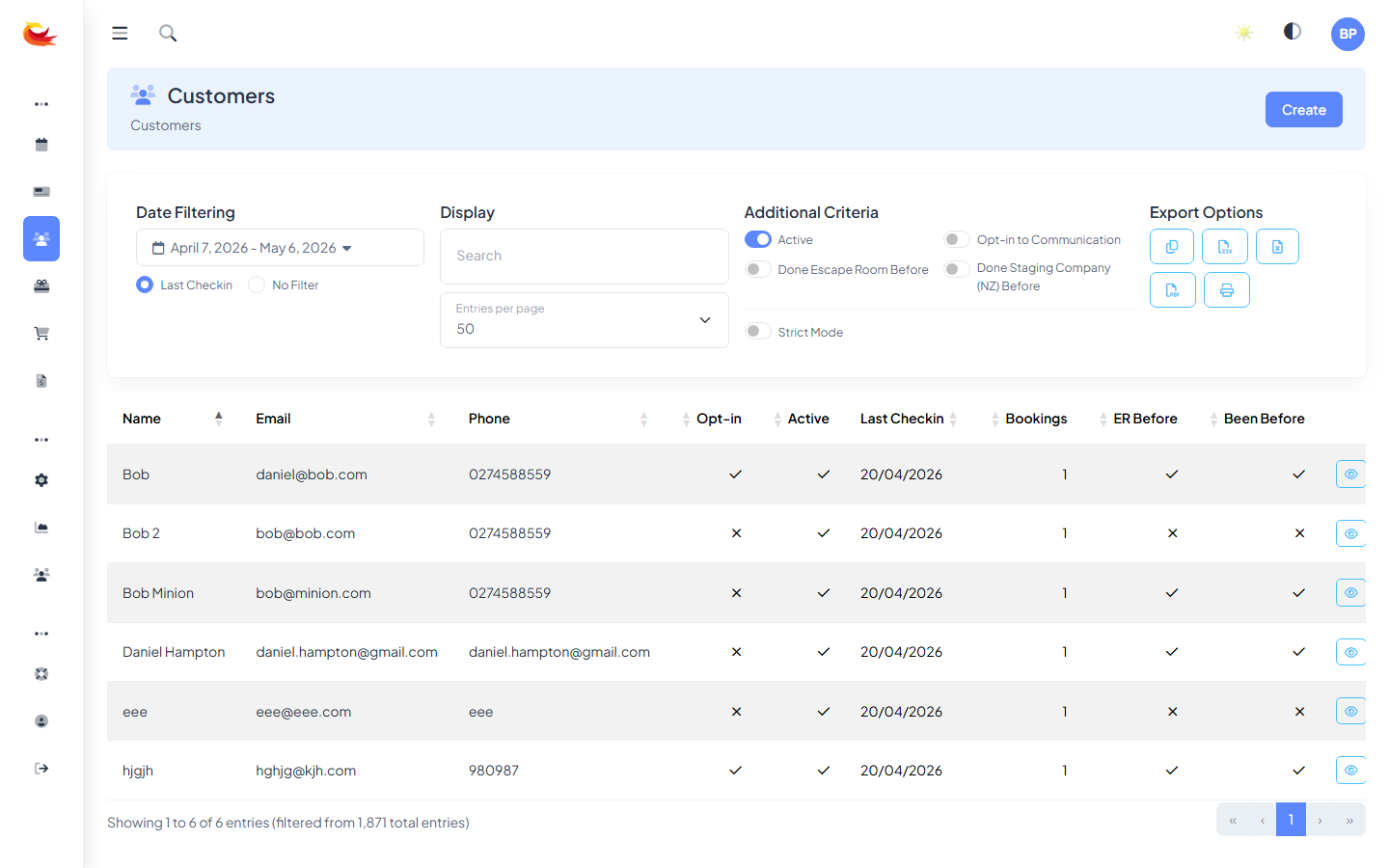
Click a customer's name to open their record.
The customer record
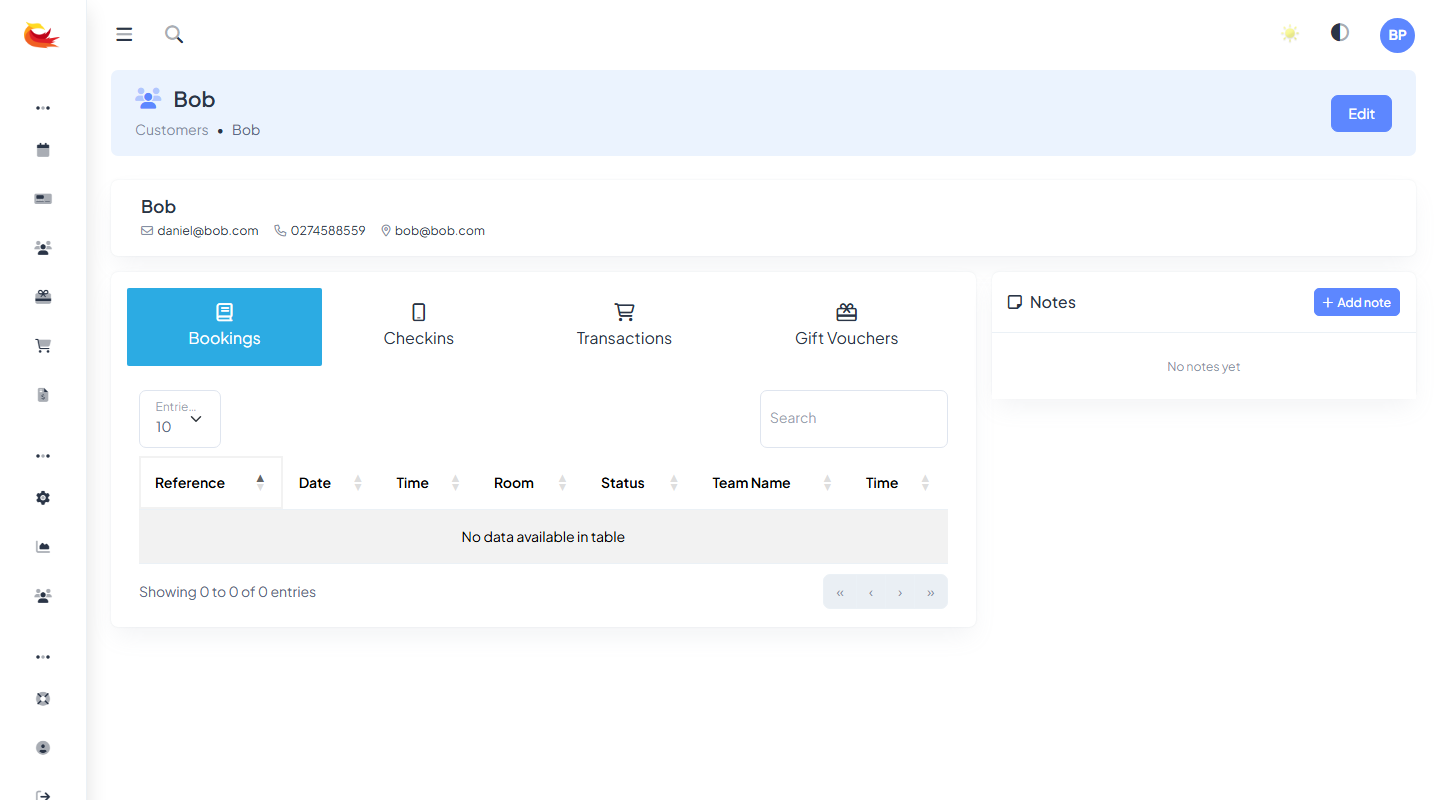
The profile shows everything Booking Phoenix knows about the customer:
- Contact details — name, email, phone, address.
- Bookings — full history, most recent first.
- Payments — all charges, refunds, and saved cards.
- Vouchers — issued to or redeemed by them.
- Notes & alerts — internal notes from staff (see Customer Alerts and Notes).
- Survey responses — if surveys are enabled.
- Audit log — every change made to the record, by whom.
Editing customer details
- Click Edit on the customer record.
- Update any fields — name, email, phone, address, marketing consent.
- Click Save.
The change is recorded in the audit log, so you can see who updated what and when. All linked bookings continue to reference this customer — you don't need to update them individually.
Duplicate customers
Duplicates happen: a customer books once as "john.smith@gmail.com" and again as "John.Smith@gmail.com", or uses two different email addresses. Each creates a separate record, which splits their booking history.
Booking Phoenix flags likely duplicates at the top of the customers list. Click through to review — matches are based on similar name + phone, or shared email prefix.
Merging customers
When you've identified two records that belong to the same person:
- Open the record you want to keep (usually the one with more history).
- Click Merge.
- Search for and select the duplicate record.
- Review the comparison screen — bookings, payments, and vouchers from both sides will move to the kept record.
- Click Confirm Merge.
The duplicate record is deactivated (not deleted) and all its data is reassigned. This is a one-way operation — you cannot un-merge, so double-check before confirming.
Deactivating a customer
If a customer asks to be removed from your system or you have a clear reason to block them from booking, click Deactivate on their record. They can no longer log in, receive marketing emails, or book through the widget using that email. Their historical data stays intact for reporting and compliance.
Marketing consent
The record has a marketing consent toggle reflecting whether the customer has agreed to receive promotional emails. This is set at booking time by a checkbox on the widget and can be updated from the customer record. When a customer unsubscribes from a marketing email, the toggle updates automatically.
Consent state affects which customers appear in marketing exports — only opted-in customers are included. Transactional emails (booking confirmations, reminders) are always sent regardless.
Data export (GDPR / privacy requests)
When a customer asks for a copy of their data or requests deletion, use the export/delete actions on the customer record. Export bundles everything into a downloadable file; delete anonymises the record (we can't physically delete booking history without breaking reports, but we scrub personal details).
Both actions are logged. Keep a copy of the request email in case you need to audit the action later.
Was this article helpful?
That’s Great!
Thank you for your feedback
Sorry! We couldn't be helpful
Thank you for your feedback
Feedback sent
We appreciate your effort and will try to fix the article