Customer notes are staff-only annotations on a customer's record. Some notes are just for reference ("prefers morning slots", "gluten-free"). Others are alerts — flagged notes that fire a notification email to branch staff next time that customer books. This guide covers both.
Adding a note
- Open the customer record.
- Go to the Notes tab.
- Click Add Note.
- Pick a severity — positive, neutral, or negative.
- Write the note.
- Decide whether to flag as an alert (see below).
- Save.
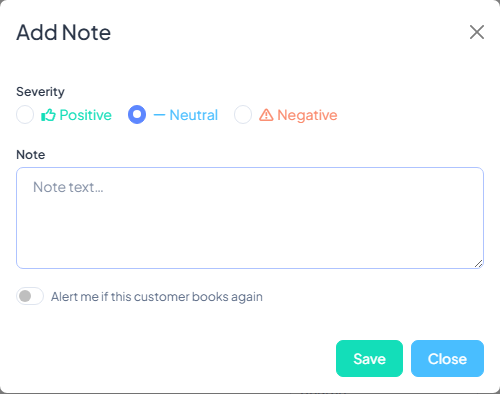
Severity
- Positive — good things. "Always brings a great group", "left a five-star review", "regular customer".
- Neutral — factual. "Celiac — no wheat-based props", "wheelchair access required", "prefers evenings".
- Negative — warnings. "Was rude to staff", "disputed a charge with their bank", "brought outside alcohol".
Severity affects how the note is displayed (colour-coded badges) and the tone of the alert email if it's flagged.
Alerts
When you tick Fire alert on next booking, the note becomes an active alert. The next time this customer makes a booking — at any branch of your tenant they're associated with — an email goes to your branch's notification addresses summarising the alert.
Typical uses:
- No-show flag — customer didn't turn up last time; flag so staff can require payment upfront.
- VIP — flag positive alerts so you can prepare extras (a drink, a welcome card).
- Behavioural — flag issues from last visit so the team can adjust their approach.
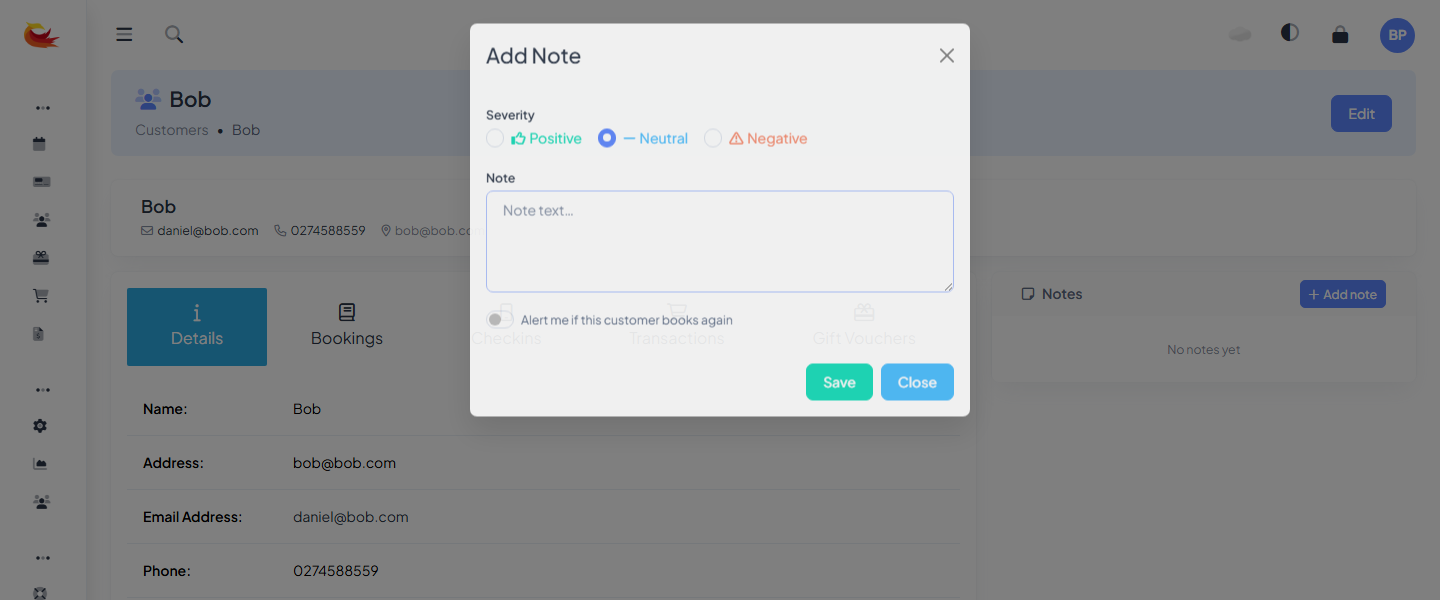
How alerts fire
Alerts fire when a booking, voucher purchase, or order is created for that customer. You'll get one email per alert per branch — if the customer has three active alerts and books, you'll get three emails.
Alerts don't fire for:
- Customers who are checking in (already past booking).
- Updates to existing bookings (only new bookings trigger alerts).
- Bookings for branches the customer isn't associated with.
No-show alerts (automatic)
When you mark a booking as no-show and tick "notify me if this customer books again", a negative alert note is created automatically with the details of the no-show (date, player count, booking reference). No need to add one manually.
Deactivating an alert
Once you've dealt with the situation, you usually don't want the alert firing forever. On the Notes tab, edit the note and untick Active alert. The note remains on the record for history, but it no longer fires emails.
Viewing alerts on a booking
When you open a booking whose customer has active alerts, the alerts are shown at the top of the booking modal with their severity colour. This saves staff having to click through to the customer record.
Who should set alerts?
Any staff member with access to the customer record can add notes and alerts. In practice:
- Front-of-house team captures notes during and after check-in (observations about the group).
- Managers flag recurring behaviour patterns and respond to no-shows.
- Owners/admins decide which notes should be active alerts.
Being stingy with alerts is better than generous — if everyone gets flagged, the signal is lost. Reserve alerts for situations where you want staff to change behaviour next time.
Privacy considerations
Customer notes are staff-only — they're never visible to the customer. But the customer can request a copy of their data under privacy legislation, which includes notes about them. Write notes in language you'd be comfortable with them reading.
Stick to factual, behavioural observations. Avoid commentary on personal characteristics, appearance, or anything that reads as judgmental. "Arrived 30 minutes late" is fine. "Difficult customer" is not.
Was this article helpful?
That’s Great!
Thank you for your feedback
Sorry! We couldn't be helpful
Thank you for your feedback
Feedback sent
We appreciate your effort and will try to fix the article