Surveys let you ask customers about their experience and collect structured feedback you can act on. Booking Phoenix supports post-booking surveys that fire automatically after a session ends, with responses tied to the booking and the customer so you can follow up. This guide covers setup, deployment, and reading the results.
Opening surveys
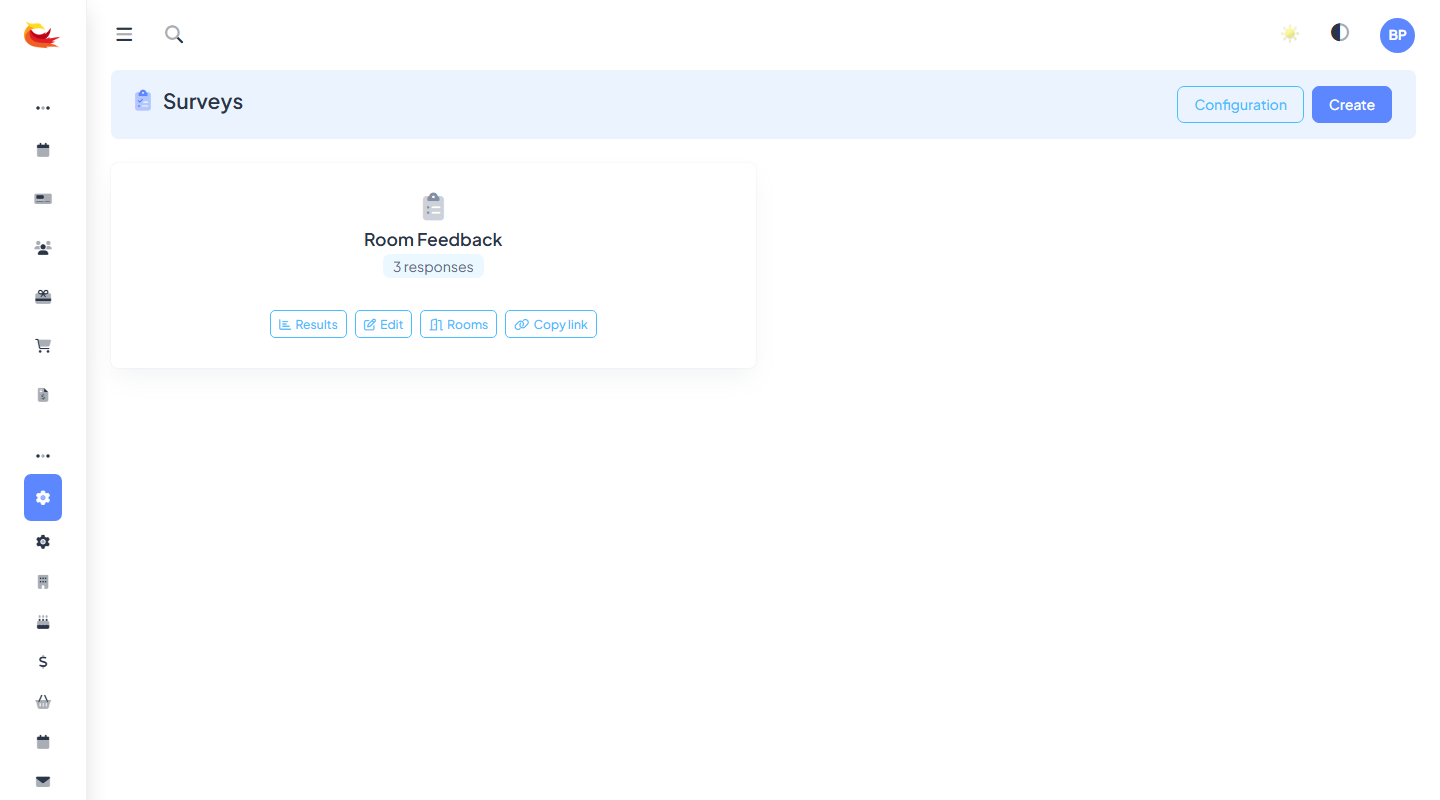
Go to Surveys from the main menu. You'll see a list of existing surveys with response counts and status.
Creating a survey
Click Create Survey. Fill in:
- Title — internal name for your reference.
- Public title — what the customer sees at the top of the survey.
- Intro text — a short paragraph explaining what the survey is for (e.g. "We'd love your feedback on your escape room experience").
- Thank you text — shown after the customer submits.
Adding questions
Click Add Question. Each question has:
- Question text — what you ask.
- Type — pick from:
- Short text — one-line free text.
- Long text — paragraph.
- Rating (1–5 stars or 1–10 NPS) — numeric scale.
- Multiple choice (single) — pick one.
- Multiple choice (multi) — pick any.
- Yes/No — boolean.
- Required — must they answer to submit?
- Options — for multiple-choice types, the list of options.
Good question patterns
- NPS (Net Promoter Score) — "How likely are you to recommend us to a friend or colleague?" (0–10 scale). Industry standard metric; track over time.
- Overall satisfaction — "How was your experience overall?" (1–5 stars).
- Specific dimensions — staff, room quality, difficulty, value, overall — rate each separately.
- Open text follow-up — "Anything you'd like us to know?" — catch the qualitative feedback numbers can't.
- Permission-to-share — "Can we use your feedback as a testimonial?" with Yes/No — flag customers you can approach for reviews.
Keep surveys short. 5–7 questions, under 3 minutes. Longer surveys kill response rates.
Delivery
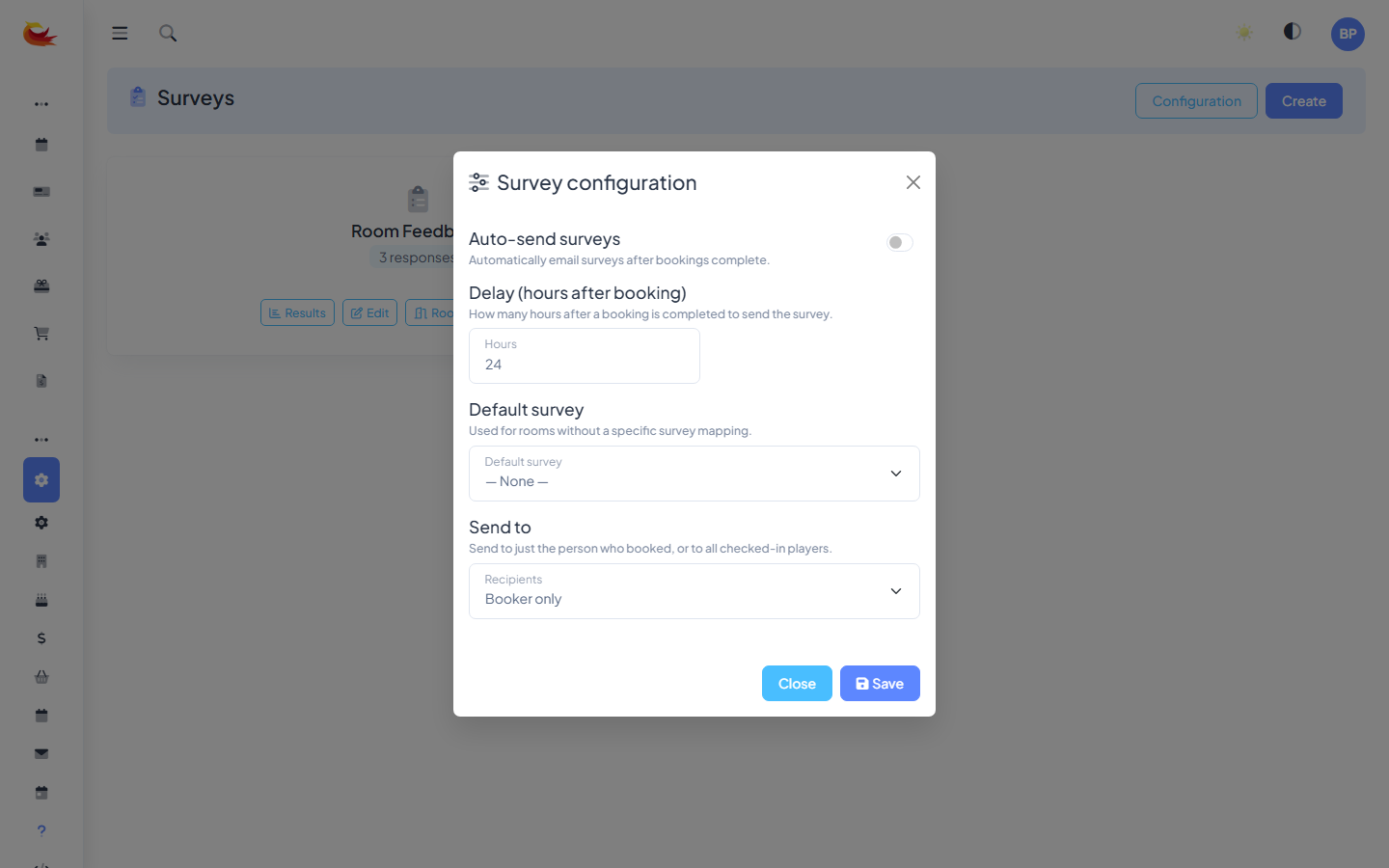
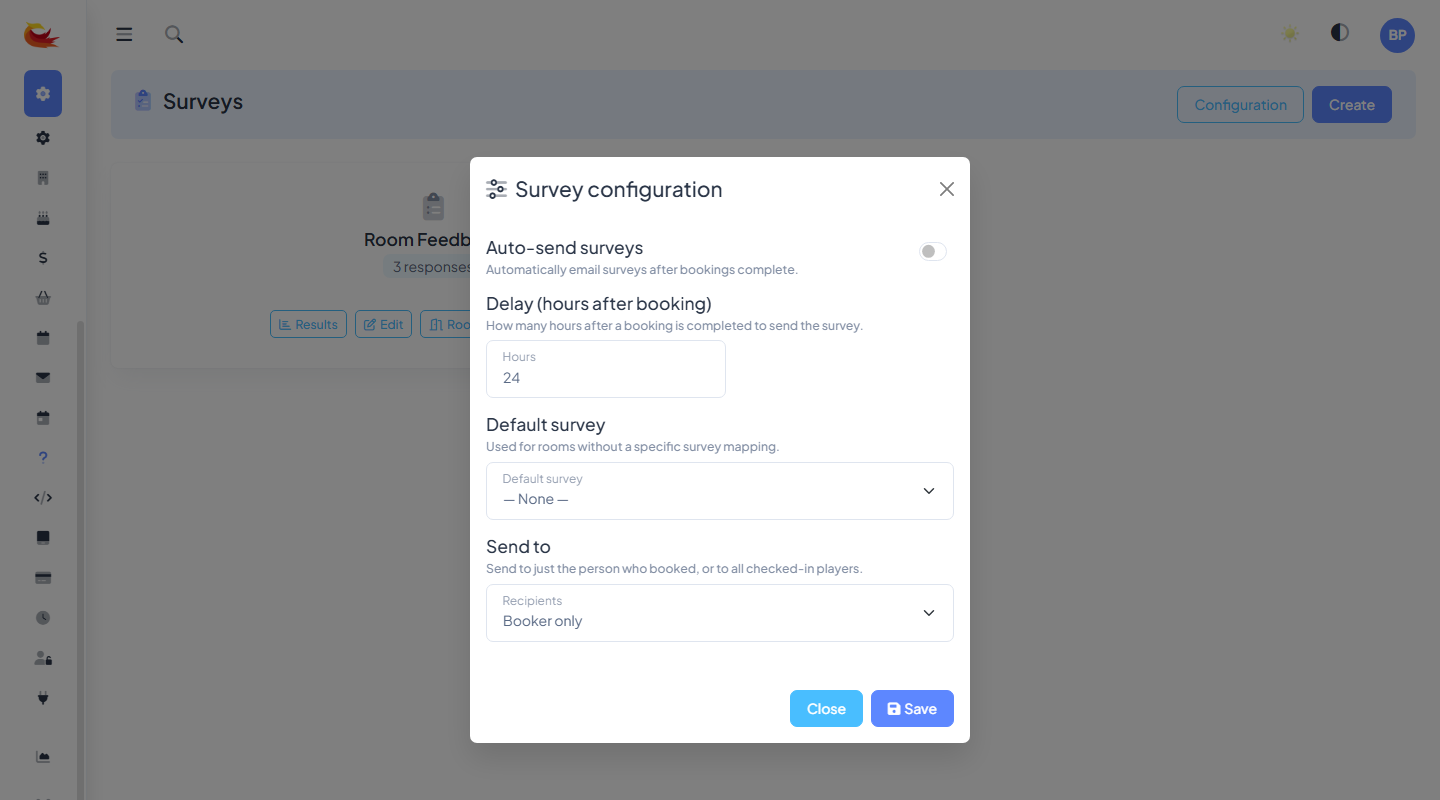
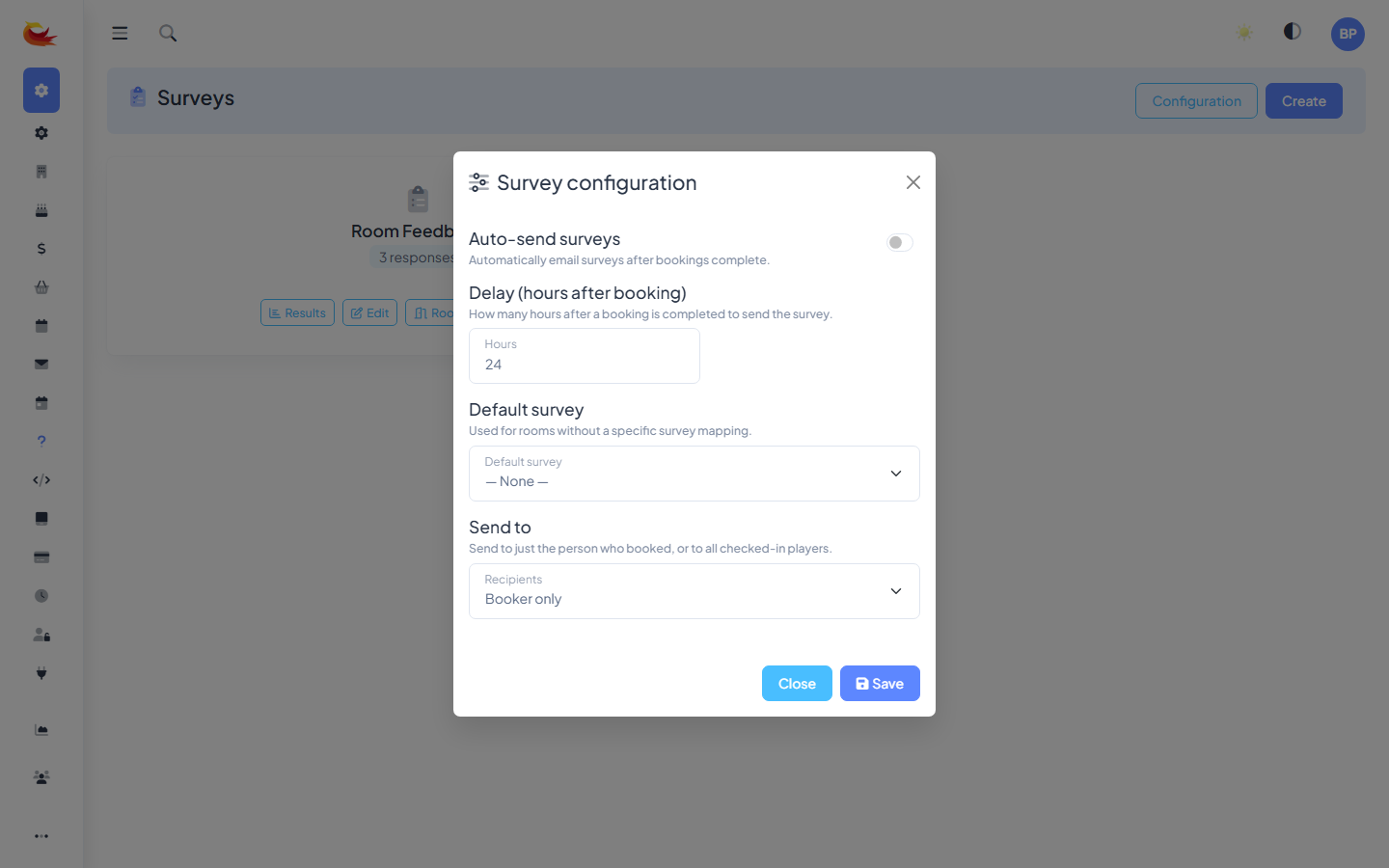
Configure when and how the survey fires:
- Trigger — most common is "X hours after booking ends". A few hours afterwards catches the experience while it's still fresh.
- Delivery channel — email (default), SMS with a link, or both.
- Which bookings — all rooms, or specific rooms only. Useful if you want different surveys per experience type.
Testing
Before activating, send yourself a test:
- Make a small test booking on a slot that's ended (or ask support to backdate a booking).
- The survey should arrive at the configured delay.
- Fill it in as a customer and confirm the response appears on the survey's Responses tab.
Responses
Open the survey and click Responses. You'll see:
- Response list — each row is one customer's submission, with their name, booking, submission date, and a summary.
- Charts — aggregate results per question (NPS distribution, star averages, multiple-choice breakdowns).
- Open text — a browsable list of long-text answers.
Click any response to see that customer's full set of answers in context — along with their booking details.
Acting on feedback
- Low scores — follow up personally within 24 hours. A quick apology and a voucher often turns a 3-star into a repeat customer.
- High scores — ask for a public review. "Thanks for the feedback — would you mind posting something similar on Google?"
- Recurring themes — if open-text answers mention the same issue repeatedly (too hot, hard to find the entrance, props broken), fix it.
- Track NPS over time — monthly NPS is the single best indicator of trajectory. Small changes matter; benchmark against your own prior months.
Exporting responses
Click Export on the Responses tab. A CSV downloads with one row per response, one column per question. Import into spreadsheets, BI tools, or send to your marketing team.
Multiple surveys
You can run more than one survey at a time — a general post-experience survey, a separate NPS-only survey every 6 months, a targeted survey for a specific room. Keep them non-overlapping (don't send two surveys to the same customer within a week).
Common pitfalls
- Too long — response rate drops sharply above ~5 questions.
- Leading questions — "How amazing was your experience?" biases toward high scores. Ask neutrally: "How would you rate your experience?"
- No follow-through — if you don't read responses or act on them, you'll feel the effort is wasted and stop running surveys. Build a weekly habit of reviewing.
- Only surveying happy customers — some branches only send after successful games. Send after all bookings (including cancellations with a tailored question set) for an honest picture.
Was this article helpful?
That’s Great!
Thank you for your feedback
Sorry! We couldn't be helpful
Thank you for your feedback
Feedback sent
We appreciate your effort and will try to fix the article