Stripe is the payment provider Booking Phoenix uses to take card payments — on the booking widget, at the POS, for voucher purchases, and for refunds. This guide walks through connecting your Stripe account so you can start accepting payments.
Before you start
You'll need:
- A Stripe account. If you don't have one, sign up at stripe.com. The signup process asks for your business details and bank account for payouts — allow ~15 minutes.
- Admin access to your Booking Phoenix branch settings.
- A Stripe secret key and publishable key — these are the two values that link your branch to your Stripe account.
1. Find your Stripe keys
Log into the Stripe Dashboard. In the left sidebar, go to Developers → API keys.
You'll see two keys:
- Publishable key — starts with
pk_live_(orpk_test_in test mode). This is safe to share and is used on the customer-facing widget. - Secret key — starts with
sk_live_. Click "Reveal key" to see it. Never share this key — treat it like a password.
2. Enter the keys in Booking Phoenix
In Booking Phoenix, go to Settings → Payment Provider (or similar — the exact name depends on your branch setup).
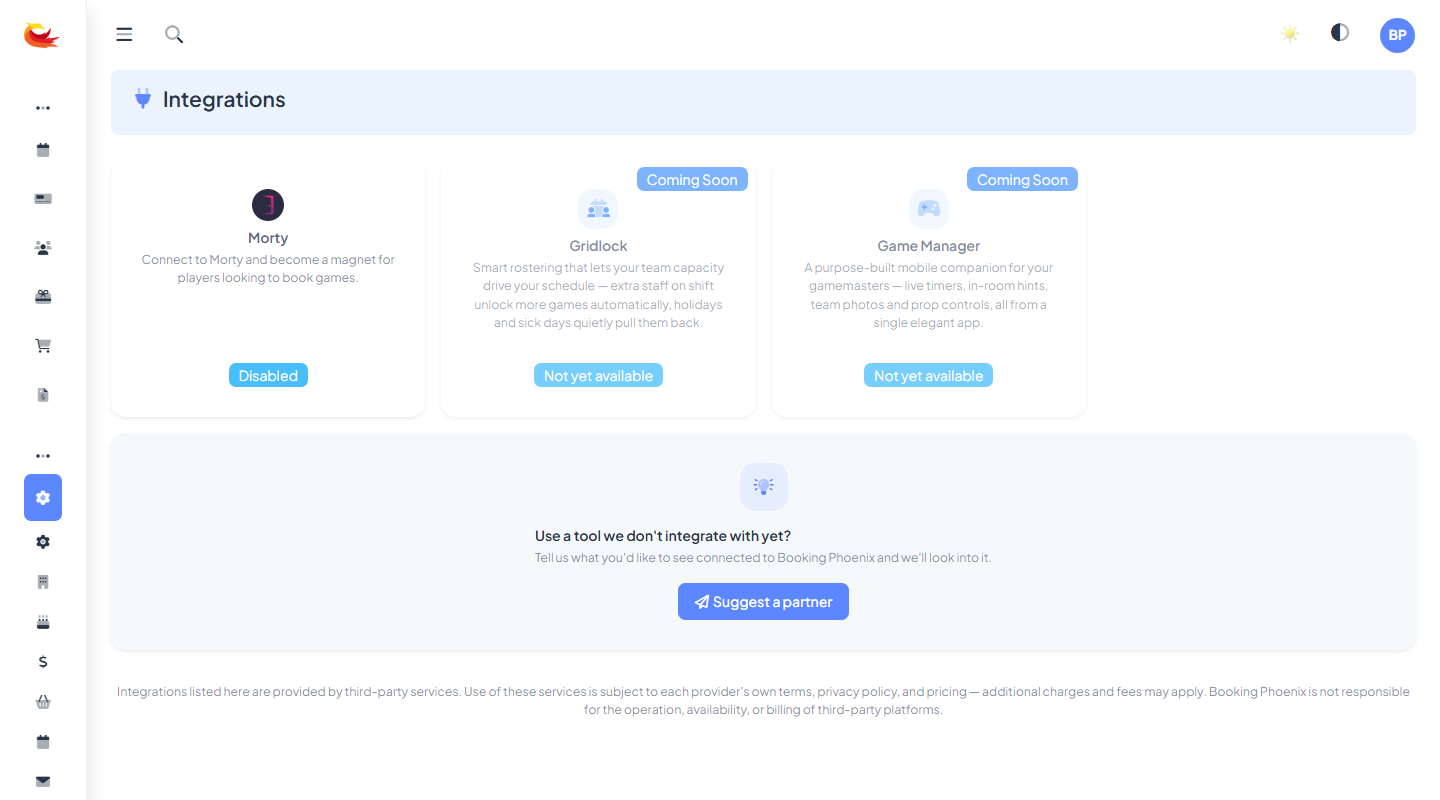
- Select Stripe as the payment provider.
- Paste the publishable key into the Publishable Key field.
- Paste the secret key into the Secret Key field.
- Click Save.
3. Test the connection
After saving, the settings page should show a green "Connected to Stripe" indicator. If it shows red or an error:
- Double-check you copied both keys without extra spaces.
- Make sure you're using live keys (
pk_live_/sk_live_) for a live branch, not test keys. - Confirm your Stripe account is activated — Stripe won't process live payments until you've completed the verification steps in their dashboard.
4. Take a test booking
Make a small test booking against your own card:
- Go to your booking widget or use the POS.
- Book a cheap slot ($1–$5 ideally; you can refund it after).
- Pay with a real card.
- Check the payment appears in your Stripe dashboard within a few seconds.
- Refund it from Booking Phoenix (see Processing Refunds) to confirm refunds work end-to-end.
Test mode vs live mode
Stripe has a test mode with fake cards (4242 4242 4242 4242) that never charge real money. To use test mode in Booking Phoenix:
- Toggle the Stripe dashboard to "Test mode" (top-right of the Stripe site).
- Copy the test API keys (they start with
pk_test_andsk_test_). - Paste them into your branch settings.
Use test keys on a non-production branch only. Never mix test and live keys in the same branch — you'll either fail to charge or charge against the wrong account.
Payouts
Stripe handles payouts to your bank account on a schedule you set in the Stripe dashboard (typically daily or weekly). Booking Phoenix doesn't manage this — everything payment-related that's not "take a card" or "refund a card" lives in the Stripe dashboard itself: disputes, chargebacks, fees, tax documents, and payout schedules.
Security notes
- Booking Phoenix does not store customer card numbers on its servers. Cards are tokenised by Stripe the moment they're entered; we store only the Stripe token.
- PCI compliance is handled by Stripe — you don't need to complete a separate compliance program as long as you only take cards through the Stripe-integrated flows.
- If you suspect your secret key has leaked (e.g. accidentally committed to a public repo), immediately rotate it in the Stripe dashboard and paste the new one into your branch settings.
Was this article helpful?
That’s Great!
Thank you for your feedback
Sorry! We couldn't be helpful
Thank you for your feedback
Feedback sent
We appreciate your effort and will try to fix the article