The schedule controls when a room is available for booking. It's built from time slots grouped into seasons — seasons let you run a different timetable in summer vs winter, during school holidays, or for a special event period.
1. Open the room's schedule
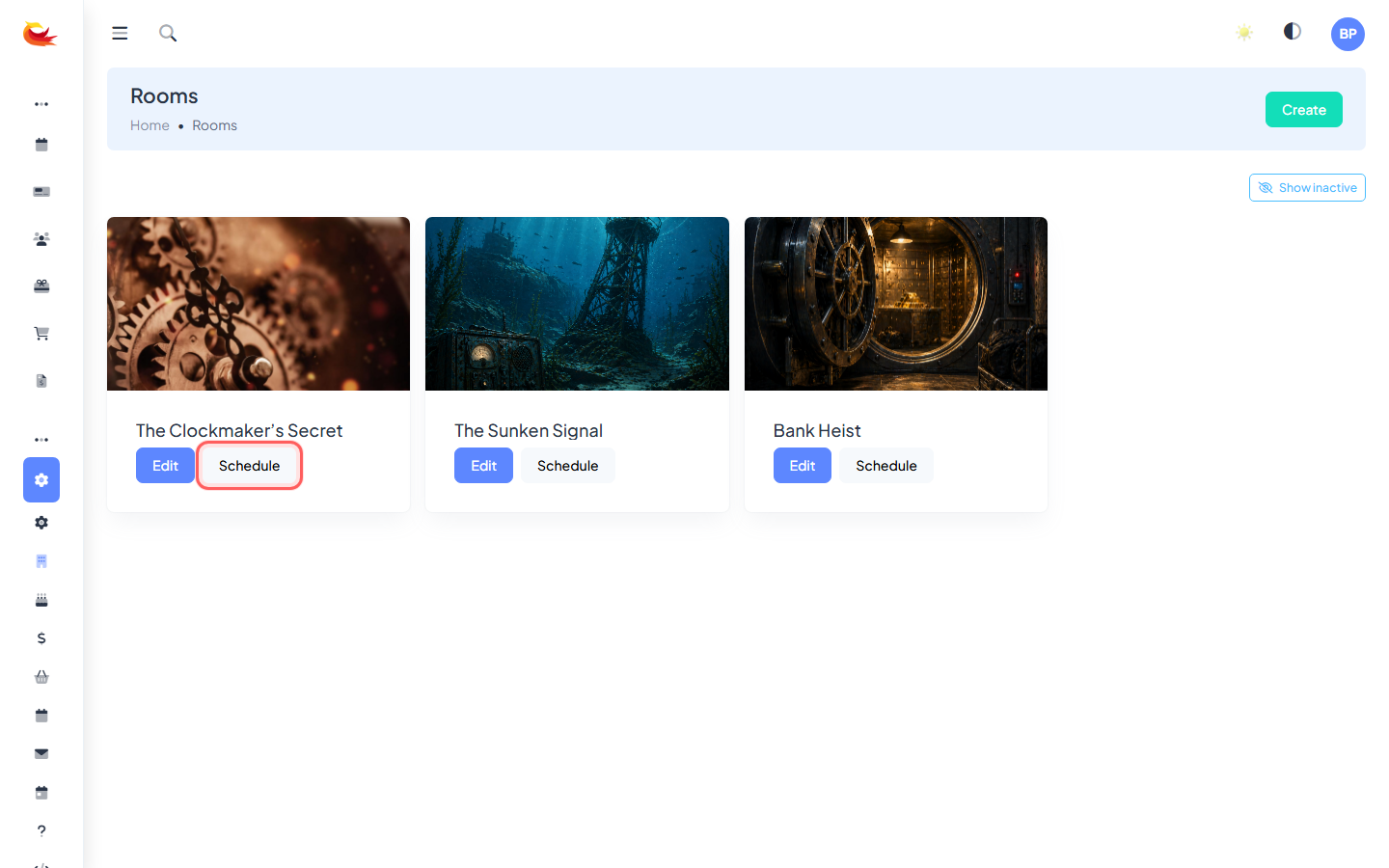
Go to Rooms, find the room you want to schedule, and click the Schedule button on the room card.
2. Seasons and the tab bar
At the top of the schedule page is a row of tabs — one per season, plus a + button to create a new one. The tab highlighted in blue is the season you're currently editing. Bookings use the active season for the date being booked.

Create a new season
Click the + tab. Give the season a name (e.g. "Summer 2026", "School Holidays") and set the date ranges it covers. You can attach multiple date ranges to a single season — useful for recurring holiday periods.
3. Add a time slot
With the right season selected, click Add new (top right). A new slot card appears with a dashed border. Set:
- Time — the start time of the slot (click the large time display on the left of the card).
- Days of the week — click the day pills (S M T W T F S) to toggle each day this slot runs.
- Availability — how many parallel bookings this slot can take at once (for rooms that can run more than one group simultaneously).

Click Save on the slot card and it becomes active. Save as many as you need — typically one per start time per day cluster.
4. Editing or removing an existing slot
Click directly on a slot card to edit it. If the slot has future bookings attached, you'll see a warning count and the latest affected booking date — be careful changing times on a slot with real customers booked in.
To take a slot out of service without deleting it, toggle it inactive. Inactive slots are collapsed into a section at the bottom of the page you can expand.
5. Copying slots from another season
When setting up a new season, you often want the same timetable as an existing one. Use the Copy from another season option to clone all slots across in one go, then tweak as needed.
Tips
- One slot, many days. A single slot with 4 day pills selected is better than 4 separate slots — easier to edit later.
- Seasons can overlap dates only if their date ranges don't collide. If two seasons cover the same day, the schedule becomes ambiguous — the system will warn you.
- Inactive slots don't affect bookings but keep historical data intact for reporting.
Was this article helpful?
That’s Great!
Thank you for your feedback
Sorry! We couldn't be helpful
Thank you for your feedback
Feedback sent
We appreciate your effort and will try to fix the article